ここで扱うファイルはすべて、あなたの端末に残ります。
PDF、画像、開発者、SEO、テキスト、学生、ビジネス向けツール — すべて無料、すべてブラウザ内で完結。アップロードなし、アカウントなし、サーバーがデータを見ることはありません。
Popular tools
The highest-demand tools with full options — browse by category below for the rest.
How this actually works
Each tool runs entirely with JavaScript already loaded in this page — PDF tools via pdf-lib and pdf.js, image tools via the browser's native Canvas API, and everything else with plain JavaScript. Your files or input are read into browser memory, processed, and handed back as a download or copyable result. This page itself is served by a small Laravel route; Laravel never sees your files either. The only backend in use is Supabase, and only for two optional things: signing in with a magic link, and — only if you're signed in — a log of which tool you ran and when. Honest limits worth knowing: Compress PDF flattens each page to a re-encoded image (great for scans, not ideal if you need selectable text after); HEIC conversion depends on your browser (Safari usually works; Chrome often cannot decode HEIC without a library we don't ship); Fill PDF Form is best-effort for simple AcroForm fields, not a full Adobe Forms replacement; and Word/Excel/PowerPoint ⇄ PDF genuinely needs a server-side engine, so it isn't included — this build only ships tools that can honestly run client-side.
Questions people actually ask
What resolution are the exported images?
Pages render at 2x scale for a crisp result on screen and for most printing; documents over 60 pages render at a slightly lower scale automatically to keep the browser responsive.
Do I get one image per page?
Yes — every page becomes its own image file.
Should I choose PNG or JPG?
PNG is lossless and sharper for pages with text — the better default if unsure. JPG compresses more and gives smaller files, which suits photo-heavy pages or when file size matters more than pixel-perfect sharpness.
How do I get the download if my PDF has multiple pages?
A single-page PDF downloads directly as one image; a multi-page PDF automatically bundles all the exported images into one zip file.
Is there a page limit?
No hard limit — very long documents just render at a slightly lower scale so the browser stays responsive while processing.
Will this work on a scanned PDF?
Yes — since it renders each page as a picture regardless of whether the page has real text, scanned or image-only PDFs convert exactly the same as any other.
What's the difference between this and Extract Images from PDF?
This renders each whole page as one image, text and all. Extract Images from PDF instead pulls out photos or graphics that are already embedded inside the file at their original resolution, without any text. Use this tool to capture how a page looks; use Extract Images when you want an embedded asset out of the PDF.
Are the images uploaded anywhere?
No — every page is rendered to an in-memory canvas using pdf.js, entirely in your browser, and the resulting images never leave your device.
Is this really free, and is there a file size limit?
Yes — no account, no paywall. Since processing happens in your browser's memory rather than uploading anywhere, the practical limit is your device's available RAM, not a server quota. Very large files (500+ pages) may run slower, especially for Compress and PDF→JPG.
Does anything about my file get sent anywhere?
No. Every tool runs with pdf-lib/pdf.js loaded in this page; your file is read into browser memory and never leaves it. The only network call this app makes for your account is Supabase auth — and that only stores which tool you ran and when, never file content.
Why isn't Word/Excel/PowerPoint → PDF included?
Converting Office formats accurately needs a real rendering engine (what Word or LibreOffice use internally) — no browser library does this reliably. Rather than ship a broken version, it's left out.
Does TechDriven Tools have OCR (text recognition)?
Yes — OCR PDF recognizes text in scanned or photographed pages using Tesseract.js, running entirely on your device, and gives you a searchable PDF or a plain text file. Nothing is uploaded for this either.
Can I use this without an internet connection?
Once the page and its libraries have loaded once, yes — the tools themselves need no network access. Signing in and viewing history do require a connection, since those talk to Supabase.
What happens to the "history" if I sign in?
Only a row per tool run — the tool's name and a timestamp. No filename, no file content, ever. You can see the full list any time via the History button.
Are the non-PDF utilities (password generator, JSON formatter, etc.) private too?
Yes — same rule as the PDF tools. Word Counter, Case Converter, Password Generator, UUID Generator, Base64, Hash Generator, JSON Formatter and JWT Decoder all run with plain JavaScript already loaded in this page; nothing you type or paste is sent anywhere.
PDF to JPG, in depth
Turning PDF pages into JPG or PNG images is how floor plans reach Instagram, how quiz platforms accept a single diagram, and how a signature page becomes a photo-style archive — without clumsy screenshots.
How PDF to JPG works here
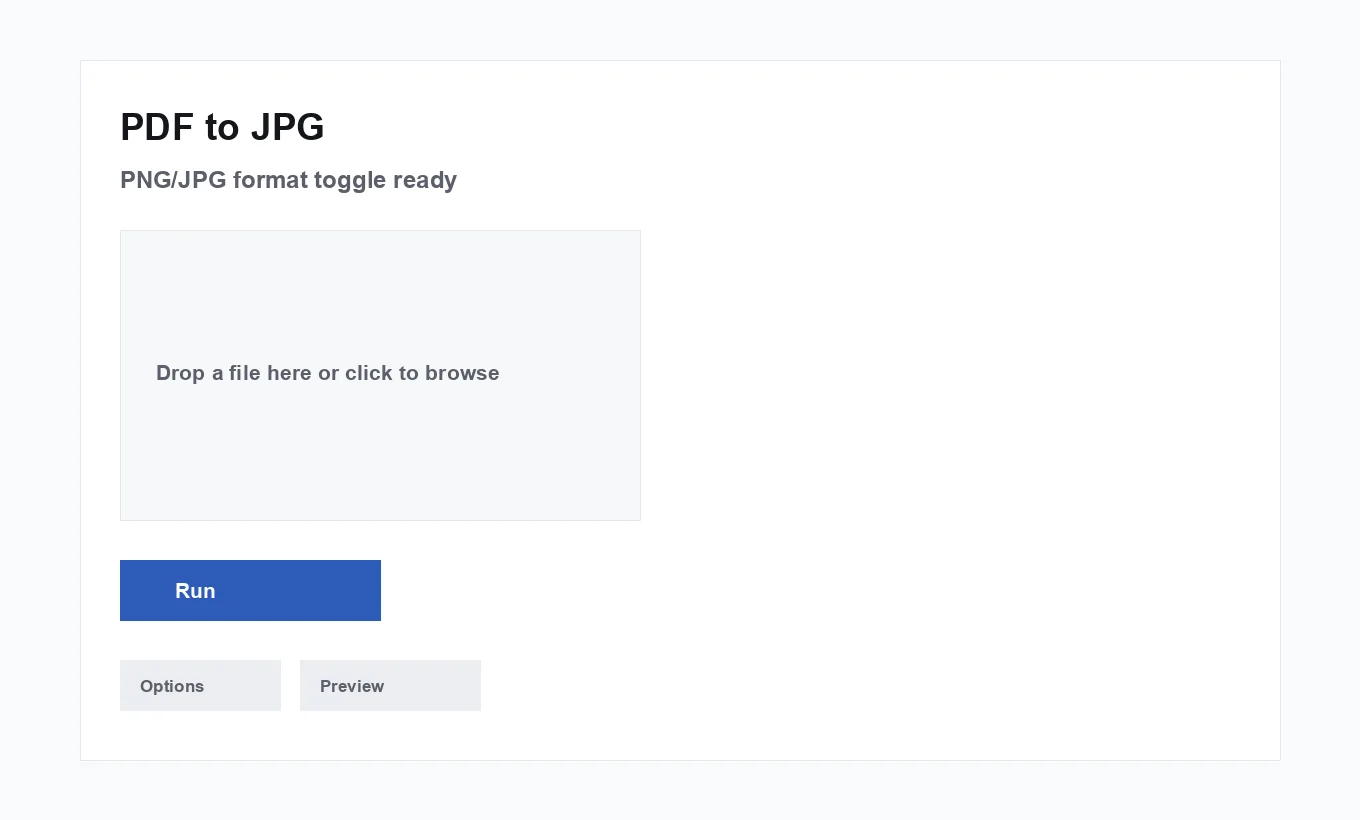
PDF to JPG on TechDriven Tools renders each page with pdf.js in your browser. Choose PNG for sharp text or JPG for smaller photo-like pages. Multi-page files download as a zip of one image per page; nothing is uploaded.
Key options: PNG vs JPG format toggle; pages render at 2x (or ~1.4x automatically on very long documents).. Change one at a time when comparing.
When to use it
Use pdf2img when the job matches what the tool is named for — not as a generic substitute for unrelated PDF or data tasks.
Prefer this browser version when the input is sensitive and you want processing to stay on-device with clear option names like: PNG vs JPG format toggle; pages render at 2x (or ~1.4x automatically on very long documents)..
If the next step differs (for example you finished and now need a sibling utility), jump to a related tool instead of forcing one screen to do everything.
Prefer pdf2img in privacy-sensitive workflows where upload compressors are unacceptable.
Document team defaults so results stay consistent across people.
On mobile, watch memory with large inputs; split work if the tab struggles.
Share one page on social media. A six-page brochure PDF is awkward on Instagram. Export to JPG, grab page-3.jpg of the floor plan, and post a native image instead of a PDF link.
Quiz and LMS image uploads. Platforms that reject PDF attachments often accept PNG. Render the handout and upload the exact diagram page at controlled resolution — sharper than a phone screenshot.
Archive a signature page as an image. Keep the signed lease as PDF and also store page images in a photo-based record system without rescanning.
Options that change the result
Primary controls
The important controls are: PNG vs JPG format toggle; pages render at 2x (or ~1.4x automatically on very long documents).. Change one at a time when comparing outcomes so you know what improved the result.
Run and verify
After you run pdf2img, open or inspect the output on the device where you will share it. Keep originals until that check passes.
Boundaries
This page does not replace desktop suites for heavy Office conversion or certified legal e-sign. It covers the focused job described above.
Defaults
Start moderate, then iterate one control at a time.
Surprises
Page scale and format choices drive most quality/size outcomes.
Naming
Rename zip/page outputs immediately after download.
Sharing
Verify the exact page or image before sending externally.
Privacy
pdf2img is designed to run in your browser so your files and text are not uploaded for the core transformation.
Still handle downloads carefully: a private process can still leave sensitive files in your Downloads folder.
Local processing means your PDFs/images are not uploaded for the conversion itself.
Manage Downloads copies under your retention policy.
Processing stays in your browser — ideal for confidential pages and photos.
Common mistakes
- Screenshotting instead of rendering — Screenshots capture chrome and screen resolution. This tool renders full pages at a controlled scale.
- Picking JPG for tiny text — Heavy JPG compression softens glyphs. Prefer PNG when legibility matters.
- Confusing this with Extract Images — PDF to JPG renders whole pages. Extract Images pulls embedded photos without the surrounding text.
PNG versus JPG for PDF pages
Text-heavy slides and forms stay crisp as PNG. Marketing pages full of photos may shrink more as JPG with acceptable softness. If you need transparent backgrounds, note that page renders are typically opaque canvases — transparency is a separate image-editing job.
For printable stills of a single diagram, PNG at 2x is usually enough. For a long photo booklet, JPG keeps the zip manageable.
Related tools
These related tools commonly sit before or after pdf2img in real workflows.
- PDF to PNG — Related browser-local tool on TechDriven Tools.
- JPG/PNG to PDF — Turn a stack of photos into one PDF.
- OCR PDF — Recognize text in scanned or photographed PDFs, then get a searchable PDF or a plain text file.
Use PDF to JPG when you need faithful page pictures, not screenshots. Pick PNG for text, JPG for size, and unzip multi-page results carefully so you keep the right page-N file.
Start from PDF to JPG.
Bookmark the live tool after reading option pitfalls.
Debug with a one-page sample before large batches.
Write option recipes for teammates instead of only screenshots.
For PDF to JPG, bookmark /pdf-to-jpg after you learn the option names in this guide — the article teaches; the tool page is for daily use.
If PDF to JPG output looks wrong, reproduce with a tiny sample first. Smaller fixtures debug faster than a production-sized input.
Name downloads from PDF to JPG with date + purpose the moment they arrive so you do not forward yesterday’s draft by mistake.
PDF to JPG sits in the Convert group on TechDriven Tools. If the next step differs, switch tools instead of stretching PDF to JPG past what it owns.
From our blog: How to Convert a PDF to JPG Images