यहाँ जो भी फ़ाइल आप छूते हैं, वह आपकी मशीन पर ही रहती है।
PDF, इमेज, डेवलपर, SEO, टेक्स्ट, स्टूडेंट और बिजनेस टूल — सभी मुफ़्त, सभी पूरी तरह आपके ब्राउज़र में। कोई अपलोड नहीं, कोई खाता नहीं, कोई सर्वर आपके डेटा को नहीं देखता।
Popular tools
The highest-demand tools with full options — browse by category below for the rest.
How this actually works
Each tool runs entirely with JavaScript already loaded in this page — PDF tools via pdf-lib and pdf.js, image tools via the browser's native Canvas API, and everything else with plain JavaScript. Your files or input are read into browser memory, processed, and handed back as a download or copyable result. This page itself is served by a small Laravel route; Laravel never sees your files either. The only backend in use is Supabase, and only for two optional things: signing in with a magic link, and — only if you're signed in — a log of which tool you ran and when. Honest limits worth knowing: Compress PDF flattens each page to a re-encoded image (great for scans, not ideal if you need selectable text after); HEIC conversion depends on your browser (Safari usually works; Chrome often cannot decode HEIC without a library we don't ship); Fill PDF Form is best-effort for simple AcroForm fields, not a full Adobe Forms replacement; and Word/Excel/PowerPoint ⇄ PDF genuinely needs a server-side engine, so it isn't included — this build only ships tools that can honestly run client-side.
Questions people actually ask
Can I choose the order the files merge in?
Yes — drag files up or down in the list before merging; they combine top to bottom in whatever order you set.
Is there a limit on how many PDFs I can merge?
No hard limit — the practical ceiling is your device's available memory, not a server quota.
Can I merge PDFs that have different page sizes?
Yes — each page keeps its own original size and orientation; merging combines files, it never resizes or crops pages to match each other.
Does merging reduce quality?
No — pages are copied into the new file exactly as they were, not re-rendered or recompressed. If you also need a smaller file, run the result through Compress PDF afterward.
Can I remove a file after adding it, before merging?
Yes — every file in the list has its own remove button, so you can adjust the set before running the merge.
Can I merge a password-protected PDF?
Not directly — a password-protected file needs its password removed first, since the tool can't open an encrypted PDF to read its pages.
What happens to links and bookmarks after merging?
Bookmarks and bare page content carry over, but internal links that pointed to a specific page number in the original file may no longer point to the right page once everything is renumbered into one document.
Do I need to convert images or other files to PDF first?
Yes — this tool merges existing PDFs only. For photos or images, use JPG/PNG to PDF or Scan to PDF first, then merge the result in with the rest.
Will page numbers continue across the whole merged file?
Yes — the merged PDF is one continuous document; page 1 of the second file becomes whatever page number comes next after the first file ends.
Can I merge PDFs on my phone?
Yes — the same drag-to-reorder list and merge process works in a mobile browser, no app required.
Is there a file size limit?
No hard limit — very large combined files just take longer and use more of your device's memory, since there's no server involved to offload the work to.
Can I add the same file twice by mistake?
No — a file with the same name and size as one already in the list is automatically skipped as a duplicate, so you can't accidentally merge two copies of the same document.
What is the merged file named?
merged.pdf by default — rename it after downloading if you want something more specific.
Is this really free, and is there a file size limit?
Yes — no account, no paywall. Since processing happens in your browser's memory rather than uploading anywhere, the practical limit is your device's available RAM, not a server quota. Very large files (500+ pages) may run slower, especially for Compress and PDF→JPG.
Does anything about my file get sent anywhere?
No. Every tool runs with pdf-lib/pdf.js loaded in this page; your file is read into browser memory and never leaves it. The only network call this app makes for your account is Supabase auth — and that only stores which tool you ran and when, never file content.
Why isn't Word/Excel/PowerPoint → PDF included?
Converting Office formats accurately needs a real rendering engine (what Word or LibreOffice use internally) — no browser library does this reliably. Rather than ship a broken version, it's left out.
Does TechDriven Tools have OCR (text recognition)?
Yes — OCR PDF recognizes text in scanned or photographed pages using Tesseract.js, running entirely on your device, and gives you a searchable PDF or a plain text file. Nothing is uploaded for this either.
Can I use this without an internet connection?
Once the page and its libraries have loaded once, yes — the tools themselves need no network access. Signing in and viewing history do require a connection, since those talk to Supabase.
What happens to the "history" if I sign in?
Only a row per tool run — the tool's name and a timestamp. No filename, no file content, ever. You can see the full list any time via the History button.
Are the non-PDF utilities (password generator, JSON formatter, etc.) private too?
Yes — same rule as the PDF tools. Word Counter, Case Converter, Password Generator, UUID Generator, Base64, Hash Generator, JSON Formatter and JWT Decoder all run with plain JavaScript already loaded in this page; nothing you type or paste is sent anywhere.
Merge PDF, in depth
Merging combines two or more PDF files into a single document, in the exact page order you choose — entirely in your browser, with nothing ever uploaded to a server.
Features
Drag-to-Reorder
Arrange files in exactly the order they should appear before merging — the on-screen list is the merge order, top to bottom.
Any Page Size
Combines pages as-is — no forced resizing or cropping, so a mix of A4 and Letter pages stays a mix of A4 and Letter pages.
Unlimited Files
No file-count cap. Add as many PDFs as your device's memory can comfortably hold in one merge.
No Quality Loss
Pages are copied exactly via pdf-lib's page-copy API, never re-rendered, rasterized, or recompressed.
Instant
No server round-trip and no upload wait — merging starts the moment you click Run.
Private by Design
Every file is read directly into your browser's memory and never leaves your device.
Works on Mobile
The same drag-to-reorder list responds to touch, not just a mouse.
Duplicate Detection
A file with the same name and size as one already added is automatically skipped, so you can't accidentally merge two copies of the same document.
Handles Restricted PDFs
PDFs with owner-level restrictions (no open password, just permission flags) load and merge normally.
Free Forever
No account, no page limit, no watermark, on any file.
How to Merge PDFs, Step by Step
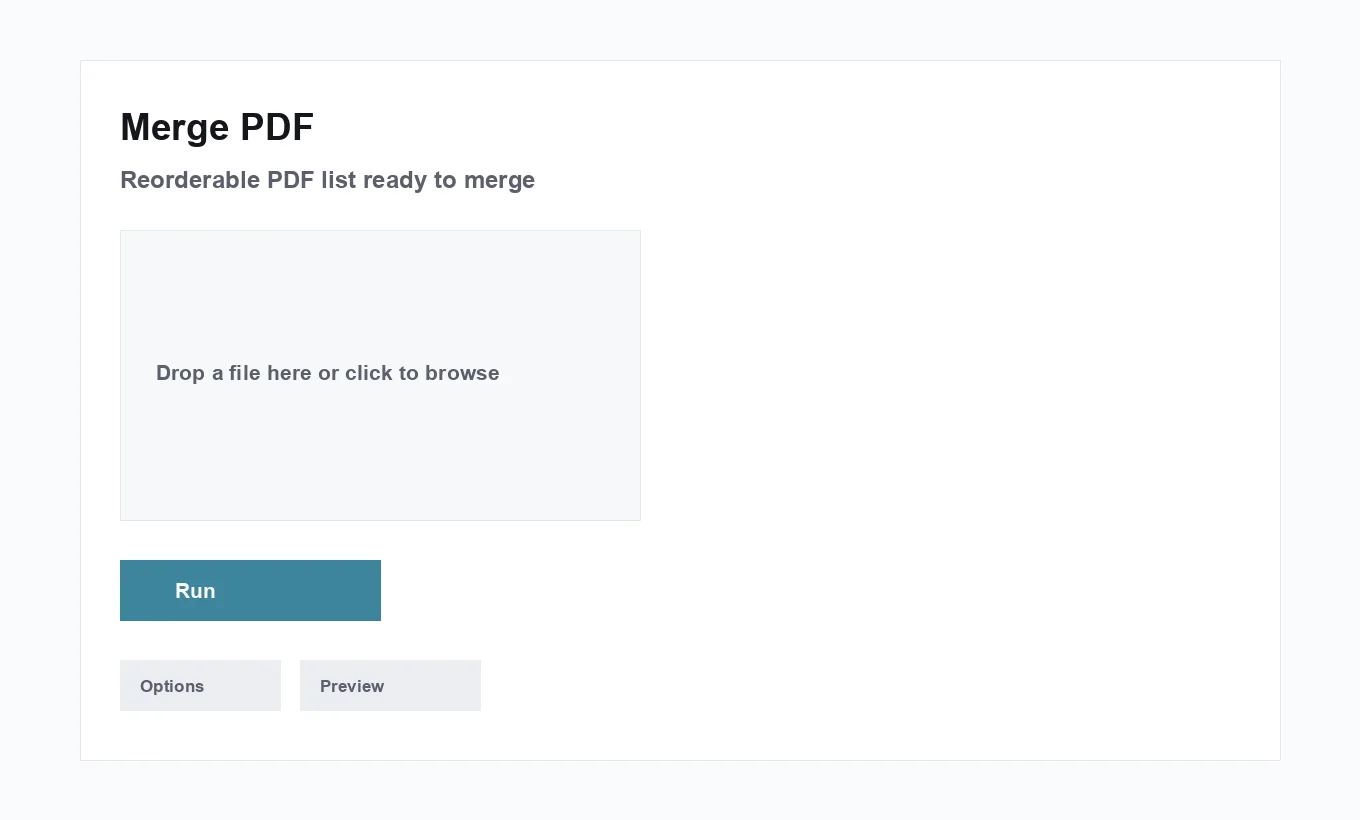
- Add your files. Drop two or more PDFs onto the upload area, or click it to browse your device. Each file is checked as it's added — anything that isn't a real PDF, or that's an exact duplicate of a file already in the list, is rejected with a clear reason rather than silently ignored. There's no minimum beyond two files (a single file has nothing to merge into) and no maximum enforced by the tool itself.
- Set the order. The file list is fully reorderable: press and drag a row to move it (on touch, press and hold, then drag), or use the up/down buttons if you'd rather not drag or are navigating by keyboard. Whatever order the list shows when you click Run is the order the pages come out in — top to bottom, no exceptions, and no separate "confirm order" step to forget.
- Run the merge. Click "Run Merge PDF." Processing happens entirely in your browser: each file is read, its pages are copied into a new document, and a progress bar tracks how far through the file list the merge has gotten. For a handful of typical office documents this finishes in well under a second; very large files or a long list will naturally take longer, since every page still has to be read and copied — there's no way to skip that work, whether it happens on a server or on your own device.
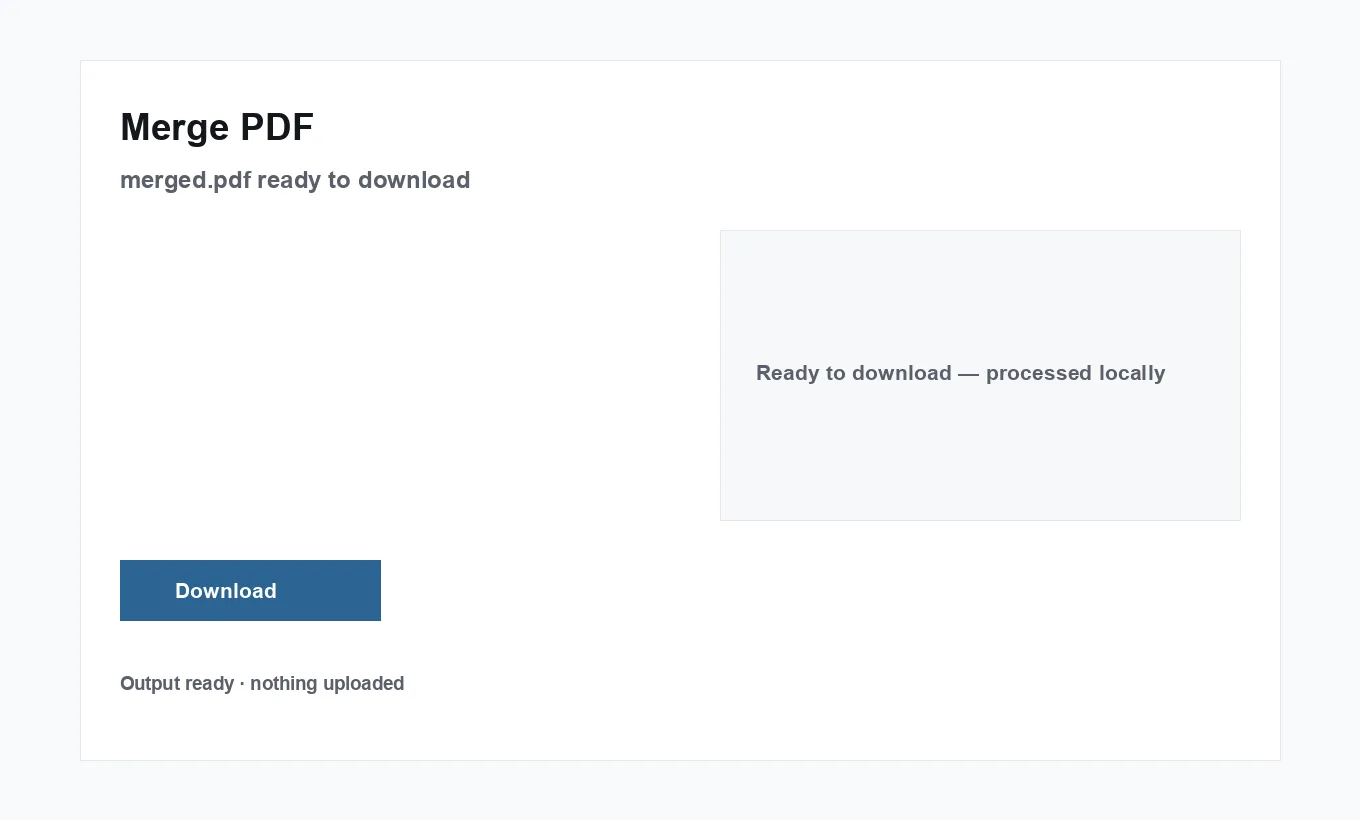
- Download the result. A single
merged.pdfappears, ready to download. Nothing is uploaded at any point in this process — the download link points at a file that has existed only in your browser's memory, generated fresh from a blob URL that's revoked once you navigate away.
Who Uses This and Why
Multi-Part Reports
Combine a cover page, body, and separately-generated appendices into the one file a reader actually opens.
Signed Contracts & Forms
Attach a scanned signature page to the original contract without re-sending the whole document for a fresh signature.
Application Packets
Assemble a resume, cover letter, transcripts, and ID scans into one submission instead of five separate attachments.
Invoices & Receipts
Consolidate a month's worth of scanned receipts into a single file for an expense claim or a bookkeeper.
Scanned Book Chapters
Turn a stack of individually-scanned pages or chapters into one properly ordered, page-numbered document.
Combined Certificates
Bundle several certifications or credentials into one PDF for a single upload to a job or licensing portal.
Real Examples
A freelancer sending a signed contract. A client emails over a 4-page service agreement as one PDF. The freelancer prints page 4, signs it by hand, and scans just that page back in as its own single-page PDF using a phone camera. Rather than re-signing and re-scanning the entire 4-page document, they merge the original contract's first three pages with the newly-scanned signed page — dragging the scan to the bottom of the list — to send back one complete, correctly-ordered, signed document instead of two separate files the client would otherwise have to reconcile themselves.
A student assembling a lab report. A written report exported from a word processor as one PDF, a spreadsheet of results exported as a second PDF, and three photographed pages of handwritten calculations converted to PDF with Scan to PDF — four files total, reordered into report → calculations → results, then merged into the single PDF a course's submission portal expects. Because the merge preserves each source's original formatting exactly, the spreadsheet's table borders and the word processor's headings both come through unchanged in the final file, rather than being flattened into a lowest-common-denominator layout.
A small business owner filing quarterly expenses. Twelve individual receipt PDFs, each named with a date prefix so they already sort roughly correctly in the file picker, dragged into final order by vendor rather than date, and merged into one Q3-expenses.pdf instead of attaching twelve separate files to an email to a bookkeeper. The bookkeeper receives one file with a predictable name instead of having to open twelve attachments to piece together the full picture.
An HR coordinator building a new-hire packet. An offer letter, a benefits summary, and a signed NDA — three PDFs from three different sources (a Word-exported template, a benefits provider's portal export, and a signed scan) — merged in that reading order into the single packet stored in the employee's personnel file. Because nothing is uploaded anywhere during the merge, this works the same way for a packet containing a social security number or bank details as it would for any other document — the sensitive fields never pass through a third party at all.
A researcher combining a paper with its supplementary material. The main manuscript PDF from a word processor and a separately-exported PDF of supplementary figures, merged with the figures placed after the references section, matching how a journal's submission system expects supplementary material to be attached as one file rather than uploaded as a separate item — saving a second upload step and avoiding any chance the two pieces get separated during review.
A property manager building a lease file. A blank lease template, a signed signature page collected separately through a scan, and a photographed copy of a tenant's ID — three files that arrive at three different times over the course of a signing process, added to the merge list as each one comes in and reordered once all three are present, rather than trying to merge them in whatever order they happened to arrive.
A translator delivering a certified document. A translated document exported as a PDF and a separate signed certificate of accuracy from the translator, required by many institutions to be submitted as one combined file with the certificate immediately following the translation, rather than as two files the recipient has to keep paired together themselves.
A nonprofit assembling a grant application. A narrative proposal written in a word processor, a budget spreadsheet exported to PDF, and letters of support collected as separate scanned files from different signatories over several weeks — all merged into the single PDF most grant portals require as one upload, in the exact section order the funder's guidelines specify.
How It Compares
| Feature | TechDriven Tools | Other Online Tools | Desktop Software | Command-Line Tools |
|---|---|---|---|---|
| Speed | Instant, no upload | Depends on upload speed | Depends on install | Instant, but needs setup |
| Privacy | Never leaves your device | Varies — check the site's policy | Local, but often needs install/updates | Local, fully offline |
| Installation | None — runs in browser | None | Download & install required | Requires tools installed first |
| Mobile-friendly | Yes | Varies by site | No | No |
| Free | Always | Often freemium / capped | Often paid | Free, but not beginner-friendly |
| File limits | None beyond device memory | Often capped (e.g. 5 files free) | Varies | None |
| Ease of use | Drag and drop | Drag and drop | Menu-driven | Typed commands |
If you specifically need to reduce the size of the merged result rather than just combine files, pair this with Compress PDF — merging alone never changes file size beyond the arithmetic sum of the inputs (see "File Size After Merging" below). And if the goal is reordering pages inside one existing file rather than combining several files, Organize Pages is the more direct tool.
Common Mistakes
Assuming upload order is merge order
The order files were selected or dropped in is not necessarily the order they merge in. The list is fully reorderable after upload specifically so you can fix this — the order that matters is whatever the list shows the moment you click Run, not the order you happened to pick files in. This trips people up most often when several files are dropped at once as a batch, since a browser's own file-selection dialog doesn't guarantee the order matches what you'd expect just from looking at a folder.
Expecting merging to also shrink the file
Merging never touches page content, quality, or compression — it only combines pages. A merged file that came out larger than expected isn't a bug; it's the sum of the input files' sizes, because nothing was re-encoded. Compress PDF is the separate tool for reducing size, and running it after a merge is the normal way to get both a combined and smaller file in two clear steps rather than expecting one tool to do both jobs at once.
Uploading an image instead of a PDF
This tool merges existing PDFs only — a JPG or PNG dropped onto it will be rejected with a clear error rather than silently accepted and mishandled. Convert photos to PDF first with JPG/PNG to PDF or Scan to PDF, then merge the resulting PDF in with the rest. This is a common first-time mistake specifically because many people think of "combining documents" as one general action, when in this tool's case the input format has to already be PDF.
Trying to merge a password-protected PDF
A PDF that genuinely requires a password to open can't have its pages read without that password — merging will fail with a clear message rather than silently producing a broken or partial file. Remove the password first (once you have it — see Protect PDF's counterpart, Unlock PDF, if you have the password and just want it gone), then merge normally. Owner-restricted files (permission flags with no open password) are unaffected by this and merge without any extra step.
Assuming internal page-number links survive
Plain page content and most bookmarks carry over correctly, but an internal link that pointed to "page 4" in the original file may not point to the right page anymore once everything is renumbered into one continuous document — worth a quick check on any file that relied on internal cross-references, especially a table of contents built as clickable page-number links rather than named bookmarks.
Forgetting the source files still exist separately afterward
Merging creates a new file — it doesn't delete or modify the original source files, which stay exactly as they were on your device. This is usually a non-issue, but occasionally causes confusion when someone edits what they think is "the" file afterward, only to realize they edited an original source rather than the merged result, since both now exist side by side under different names.
Best Practices
Name files with a number prefix before uploading
Naming files 01-cover.pdf, 02-body.pdf, 03-appendix.pdf before uploading makes the initial list easier to sort even before you drag anything — the browser's file picker and most drag-and-drop sources list files alphabetically by default, so a numbered prefix gets you most of the way to correct order for free, and cuts down on how much manual dragging is needed once the files are actually in the tool.
Check each source file individually first
If a page in the merged output looks wrong — blank, rotated, or garbled — open the original source file it came from and check that same page there first. A merge copies pages exactly as they exist in the source; it's not capable of introducing a rendering problem that wasn't already present in one of the inputs, so tracing a bad page back to its original file is always the faster way to find the actual cause.
Merge in reading order, not save order
The order you want a human to read the file in and the order you happened to save the files on disk are often different. Take the extra few seconds to actually drag the list into the order a reader would expect, rather than merging in whatever order the files happened to be selected — a merged document read out of order is a worse experience than five separate but correctly-labeled attachments.
Compress after merging, not before, for the smallest result
If the combined file needs to be smaller — for an email attachment limit, for example — run it through Compress PDF after merging rather than compressing each file separately first. One compression pass on the final combined file is simpler than managing five separately-compressed inputs, produces a more predictable final size, and avoids compressing the same content twice if a file needs to be merged into more than one packet.
Preview the file count before running on a long list
When merging many files at once, glance at the list length before clicking Run — it's easy to drop a folder's worth of PDFs and end up with a few extra files included that weren't meant to be part of the final document. Removing a file from the list is one click; re-running the whole merge afterward is only slightly more, but catching it upfront avoids the extra step and avoids sending out a file with something in it that shouldn't be there.
Keep a single source of truth for a file that keeps growing
For a document that accumulates new pages over time — a running log, a growing evidence file, a multi-session report — merge the new pages onto the previous combined version each time, rather than keeping the last several versions as separate files and re-merging everything from scratch. This keeps exactly one current file in circulation instead of several similarly-named versions that are easy to confuse.
Double-check page count after merging a very long list
For a merge involving a dozen or more files, it's worth opening the result and confirming the total page count roughly matches what you'd expect by adding up each source file's page count. This catches the rare case where a file was accidentally left out of the list before running, faster than discovering the gap after the file has already been sent or filed.
Troubleshooting
"This PDF is password-protected"
This means the specific file needs a password just to open it, not just to edit or print it. The merge can't read pages it can't open, so it fails immediately on that file rather than skipping it silently. Remove the password from that one file first — most PDF viewers have a "remove password" or "print to PDF" option that produces an unprotected copy once you've entered the correct password once, or use Unlock PDF if you have the password — then add the unprotected copy here instead of the original.
"This file isn't a readable PDF"
Usually means one of three things: the file is actually a different format with a .pdf extension slapped on (common with files renamed by hand), the file downloaded or transferred incompletely and is truncated partway through, or the file is genuinely corrupted. Try opening the file directly in a PDF viewer outside this tool — if it fails there too, the file itself is the problem and needs to be re-obtained from its original source, not something this tool can work around.
The merge finished but a page looks blank
Check that same page in its original source file. Since pages are copied exactly, a blank page in the merged output almost always means that page was already blank (or nearly blank — a faint watermark or header only) in the source PDF before it was ever added here. Some scanned documents include intentionally blank pages (the back of a one-sided scan, for instance) that are easy to mistake for an error once they're sitting in the middle of a longer combined file.
The file list won't reorder on a touchscreen
The drag gesture on touch needs a brief press-and-hold before the drag registers — a quick, fast swipe can be read as a scroll instead of a drag. If dragging still feels unreliable on a particular device or browser, the up/down arrow buttons on each row reorder the same list without needing a drag gesture at all, and work identically on touch, mouse, and keyboard.
The result is much larger than expected
This is expected, not a bug — merging doesn't compress anything, so the output size is approximately the sum of every input file's size. If the source files each contain high-resolution scanned images, a merge of several of them can add up quickly even though nothing was duplicated or bloated in the process. If a smaller file is actually the goal, run the merged result through Compress PDF afterward.
Merging feels slow on a large batch
Because every page is read and copied entirely on your own device rather than a server, the speed depends on your device's processor and available memory, not on internet speed. A batch of a few dozen typical office documents merges in well under a second on most modern devices; a batch containing several very large, image-heavy scanned files (each tens of megabytes) will take proportionally longer, since there's genuinely that much data to read and copy either way.
The "Run Merge PDF" button won't activate
The run button stays disabled until at least two files are in the list — a single file has nothing to merge into, so the tool prompts for at least one more before allowing the merge to proceed. If exactly one file shows in the list despite having added more, check whether the others were rejected on upload (a rejection reason appears above the file list when this happens) rather than assuming they were silently added.
Deep Dive
What Is PDF Merging
Merging combines two or more separate PDF files into a single document, page order preserved exactly as set beforehand. It's the digital equivalent of stapling separate printouts together, except the result stays a real, searchable, shareable PDF rather than a stack of paper — every page keeps its original text, images, vector graphics, and formatting intact, and any text that was selectable and searchable in a source file stays selectable and searchable in the merged result. This works reliably across sources because PDF itself is an open, standardized format (ISO 32000) rather than a proprietary one — a page produced by one piece of software and a page produced by entirely different software both describe their content the same standardized way underneath, which is exactly what makes copying pages from unrelated source files into one coherent document possible in the first place.
Benefits of Consolidating Files
The main benefit is consolidation: instead of five separate attachments, a recipient gets one file, in the right order, that opens the same way everywhere. That matters most when a document naturally exists in parts — a signed contract scanned page-by-page, a report with separately-generated appendices, a set of invoices for one expense claim — and needs to travel and be read as a single, complete unit rather than reassembled by the reader from a pile of loosely-related attachments. A single file is also simpler to file, name, search for later, and back up than a scattered set of related documents that all have to be kept together to make sense.
File Size After Merging
There's no compression step in a merge — the combined file's size is approximately the sum of the original files' sizes, since pages are copied in as-is rather than re-encoded. A merge doesn't make anything smaller or larger beyond that arithmetic; if the combined file needs to hit a specific size for an email attachment limit, that's a job for Compress PDF, run as a separate step either before or after merging. One small exception worth knowing: if two source files happen to embed the exact same font, the merged file's total size can occasionally be a byte or two smaller than the strict sum, since PDF's own internal structure can sometimes deduplicate identical embedded objects — but this is a minor structural detail, not something to plan a workflow around.
What Happens to Bookmarks and Links
Page content and most PDF bookmarks carry over into the merged file correctly. What can break is an internal link that referenced a specific page number in the original file — once every page from every source file is renumbered into one continuous document, a link that said "go to page 4" may no longer land on the page it originally meant, since that page number now refers to a different page in the combined file. This is worth a quick check on any source file that relied heavily on internal cross-references or a table of contents with page-number links, especially reports generated by software that builds its own internal navigation.
Page Numbering in the Combined File
The merged PDF is one continuous document — page 1 of the second source file becomes whatever page number comes immediately after the first file's last page. If the individual files had their own printed page numbers baked into the page content (a header or footer showing "Page 1 of 4," for instance), those printed numbers don't change or renumber themselves; only the PDF's own internal page position updates, so the visible printed number and the file's actual page position can end up out of sync. A document that needs accurate printed page numbers after merging should have those numbers added afterward with Add Page Numbers, applied once to the final combined file rather than to each source file beforehand.
Security Considerations
Since every file involved is read directly into your browser's memory and never uploaded anywhere, merging a batch of contracts, ID scans, or financial statements together carries the same privacy profile as opening them locally on your own device — nothing about the merge process introduces a new place for that content to be stored, logged, or exposed. This matters specifically for the kinds of documents people merge most often: signed agreements, financial records, and identity documents, all of which are exactly the content you'd least want passing through a third-party server, sitting in a temporary upload folder, or appearing in a server access log even briefly.
Merging on a Mobile Device
The same drag-to-reorder list works with touch as well as a mouse — press and hold a file, drag it to its new position, and let go. There's no practical reason to email files to yourself from a phone just to merge them on a laptop later; the whole process, from adding files to downloading the result, works in one mobile browser tab, and the resulting file downloads to the same place any other mobile download would, ready to share or save from there.
Business and Education Use Cases
In an office, this is the tool for assembling a single expense report from several receipts, combining a contract with its signed signature page, or building one onboarding packet from forms collected separately across a hiring process. In education, it's combining a multi-part assignment, merging scanned worksheet pages into one file for a gradebook upload, or putting together a reading pack from several separate handouts — all without installing anything on a shared or school-managed computer that may not allow new software installs at all.
Merging vs. Other Ways to Combine Documents
Printing every source document to a single physical stack and re-scanning it as one file technically produces a combined PDF too, but at the cost of a full print-and-rescan cycle, a loss of text selectability on anything that was previously a real digital document rather than a scan, and a noticeably larger file for the same content. A word processor's "insert file" or "combine" feature can merge documents that originated in that same word processor, but breaks down as soon as one of the sources is already a PDF, a scan, or came from different software entirely — exactly the mixed-source case this tool is built for. Merging the actual PDF files directly, as this tool does, is the only approach that keeps every source's original quality, searchable text, and embedded formatting fully intact while also working across files that came from completely different origins.
Accessibility of the Merged File
For a PDF that's been tagged for screen-reader accessibility (a structure separate from the visible page content, describing reading order and element roles), the underlying page content and its tags are copied along with everything else — a tagged source page generally stays tagged in the merged result. What isn't automatically unified is the reading order across files: if one source file was tagged for accessibility and another wasn't, the merged document ends up with mixed accessibility support depending on which original file a given page came from, since merging combines pages rather than rebuilding a single consistent tag tree from scratch. For a document being prepared specifically for accessibility compliance, it's worth confirming each source file was properly tagged before merging, since the merge itself won't add tagging that wasn't already there.
Digital Signatures and Merging
It's worth distinguishing a drawn or scanned signature — a signature image sitting on a page, which merges into a combined file with no issue at all, the same as any other page content — from a cryptographic digital signature, the kind applied by dedicated e-signature software that mathematically signs the exact byte content of a PDF to prove it hasn't been altered since signing. Merging a cryptographically-signed PDF as one of several files changes the combined file's byte content by definition, which will generally cause that original signature to show as invalid or broken when the merged file is checked, even though nothing about the signed page's visible content changed at all. If a file carries a real cryptographic signature that needs to stay independently verifiable, keep it as its own separate file rather than merging it into a larger packet, or re-sign the final combined document after merging if your signing software supports signing multi-source files directly.
Industry Applications
Legal
Assembling a filing from a motion, supporting exhibits, and a certificate of service — each drafted or scanned separately but required to be submitted as one combined document by most e-filing systems. Because nothing is uploaded during the merge, this fits naturally alongside the confidentiality obligations that come with legal documents, which often can't be run through an unknown third-party service at all.
Healthcare
Combining a patient intake form, insurance card scan, and referral letter into one file for a records system, or merging several pages of scanned lab results into a single chart entry. Patient records carry strict confidentiality requirements, and a tool that never uploads the file content is a meaningfully different privacy posture than one that processes files on a remote server, even briefly.
Real Estate
Building a closing packet from a purchase agreement, disclosure forms, and an inspection report, each originating from a different party in the transaction, merged into the single document a title company or buyer expects to review as one file rather than several.
Government and Public Sector
Combining a permit application with supporting documents — site plans, proof of ownership, prior correspondence — into the single submission most permitting portals require, especially where the portal itself only accepts one file per application.
Finance and Accounting
Consolidating monthly statements, receipts, and supporting schedules into a single file for an audit package or a loan application, where reviewers expect one complete document rather than a folder of loosely related attachments.
Education
Merging a syllabus, several weeks of scanned handouts, and a reading list into one course packet, or combining a multi-part thesis with its appendices and signed approval page into the single document a university's submission system requires.
Insurance
Combining a completed claim form, photos of damage converted to PDF, and a police or incident report into a single claims submission, matching the one-document expectation most insurers' online portals have for a complete claim package.
Publishing and Media
Assembling front matter, individual chapter drafts, and back matter (an index, an author bio, acknowledgments) into a single manuscript file for submission to an editor, a literary agent, or a print-on-demand service that expects one complete file rather than a folder of chapter-by-chapter documents.
Merge vs. Similar Terms
A few different words get used for roughly the same underlying action, and it's worth being precise about what each one actually means on this site specifically:
- Merge vs. Combine. These are the same operation — "combine PDF" and "merge PDF" describe the identical action of joining multiple files into one, and this tool is what either search term is looking for.
- Merge vs. Append. "Append" usually implies adding pages to the end of an existing document specifically, rather than freely reordering an arbitrary set of files. This tool can do that (just leave the existing document first in the list and the new pages after it), but it isn't limited to that one pattern — full reordering is always available.
- Merge vs. Concatenate. "Concatenate" is the more technical term for the same joining-in-sequence operation, most often used in command-line PDF tools. The result is identical to what this tool produces; it's a difference in terminology, not behavior.
- Merge vs. Organize. Merging combines separate files into one; Organize Pages reorders, rotates, or deletes pages within one existing file. If you already have a single PDF and just want its own pages in a different order, Organize Pages is the right tool, not Merge.
- Merge vs. Join. "Join" is another synonym for the same combining operation — no functional difference from merging on this site.
Under the Hood
Merging is handled entirely by pdf-lib, a JavaScript PDF library that runs in the browser. For each file you add, it's read into memory as raw bytes and opened with PDFDocument.load() — using an option that specifically allows loading PDFs that carry owner-level restrictions (permission flags with no open password), since those are common on business documents and shouldn't block a merge that doesn't need to bypass an actual open password. A file that genuinely requires a password to open will fail this step with a clear, specific error rather than being silently skipped or producing a corrupted partial result.
Once a source file is open, its pages are copied — not re-rendered — into a new, empty PDF document using pdf-lib's page-copy API, one file at a time, in list order. This is why merging never touches image quality, text sharpness, or embedded fonts: the copy operation preserves the page's original content stream exactly, rather than converting it to an image or re-encoding it in any way. Embedded fonts, vector graphics, and raster images already inside a source page are copied as the same underlying PDF objects, not redrawn — the difference between this and a "print to PDF" style recombination, which does effectively redraw everything and can introduce visible quality loss or font-substitution artifacts along the way.
After every file's pages have been copied in, the assembled document is serialized back into PDF bytes in your browser and handed to you as a download — at no point does any of this leave your device or touch a network request. Performance scales roughly linearly with total page count and image weight across all source files combined, since every page genuinely has to be read and its objects copied; there's no shortcut available that a server-side implementation could take that isn't equally available here, since the actual bottleneck is the amount of PDF data being processed, not where that processing happens.
The library and the browser APIs it relies on (the File API for reading uploaded files, and Blob URLs for producing a downloadable result) are supported by every current major browser — Chrome, Firefox, Safari, and Edge, on both desktop and mobile. There's no plugin, extension, or additional runtime to install; the same code path runs regardless of which of those browsers you're using, which is also why the tool behaves identically on a phone as it does on a laptop.
Document Metadata After Merging
The merged file starts as a brand-new, blank PDF document, not a copy of any single source file — which means none of the source files' document metadata (title, author, subject, keywords) carries over automatically, even from the first file in the list. The merged result gets whatever default metadata pdf-lib assigns to a freshly created document, which is minimal. If the final file needs specific title or author metadata — for a document management system that indexes by that metadata, for instance — set it explicitly afterward with Edit PDF Metadata, applied once to the finished merged file rather than expected to inherit from any of the inputs.
Splitting a Merged File Back Apart
Merging doesn't keep any record of where one source file ended and the next began — the output is a single, ordinary PDF with no hidden markers between what used to be separate files. If a combined file needs to be split back into pieces later, that's a job for Split PDF, which cuts a PDF at a page number you choose. It's worth noting the page boundary that split needs is the same one you'd have to remember or reconstruct yourself — merging doesn't record "file A was pages 1-4, file B was pages 5-9" anywhere in the output, so if you expect to need the original files back later, it's worth keeping the un-merged source files around rather than relying on being able to cleanly reverse a merge from the combined file alone.
Merging vs. Sending a ZIP File
A ZIP archive and a merged PDF solve different problems and aren't really substitutes for each other. A ZIP keeps the original files completely separate — useful when a recipient genuinely needs each file as its own distinct document, or when the files aren't all PDFs to begin with. A merge produces one continuous document meant to be read start to finish as a single thing — the right choice when the content is conceptually one document that happens to have come from several sources. A common tell for which one you actually want: if you'd describe the result as "a folder of files" you're thinking of a ZIP; if you'd describe it as "one document with several sections," you're thinking of a merge. Sending a merged PDF also has a practical advantage many email and portal systems share: a single PDF attachment previews inline in most clients, while a ZIP typically has to be downloaded and extracted before its contents can even be seen.
Merging PDF/A (Archival) Files
PDF/A is a stricter, archival-focused subset of the PDF format — used by courts, government archives, and institutions that need long-term guaranteed readability — which requires every font to be fully embedded, forbids certain external references, and requires specific XMP metadata declaring which PDF/A conformance level a file meets. Merging two PDF/A files with this tool combines their pages correctly, but the merge process itself doesn't inspect, verify, or re-declare PDF/A conformance for the resulting combined file — it's a general-purpose PDF merge, not a PDF/A-aware one. For everyday merging this distinction rarely matters, but if the merged file has a hard requirement to remain formally PDF/A-conformant (for an official archival submission, for instance), it's worth checking the output afterward with a dedicated PDF/A validator rather than assuming conformance carried over automatically just because the inputs were conformant.
Merging and Later Revisions
Because a merge produces a brand-new file rather than linking back to its sources, a merged document has no ongoing connection to the original files it was built from — editing one of the original source files afterward has no effect on an already-merged output. If one section of a merged document needs updating later (a revised budget page in an otherwise-finished grant application, for instance), the practical options are re-merging from scratch with the updated source file swapped in, or editing the merged file directly with a PDF editor for a small, isolated change. For a document that's likely to need this kind of update more than once, it's worth keeping the original, un-merged source files well organized specifically so a clean re-merge stays easy rather than having to reconstruct which page ranges came from which source after the fact.
Expert Tips for Power Users
Merge in stages for a very large final document
For a document that will eventually combine 30 or more source files, it can be faster and easier to verify correctness by merging in a few smaller batches first — say, three groups of ten — checking each intermediate result, then merging the three intermediate files together at the end. This makes it much easier to spot which specific batch introduced a problem, rather than troubleshooting a single 30-file list from scratch.
Use consistent naming across a team
If more than one person regularly prepares files that get merged together — a shared intake process, for instance — agreeing on a simple shared naming convention (client name, then document type, then a number) means the file list very nearly sorts itself correctly before anyone has to drag a single row.
Keep an unmerged copy of anything you might need to split apart later
Since merging doesn't record where one source file ended and the next began (see "Splitting a Merged File Back Apart" below), keep the original separate files around for anything you might later need to pull back apart by source, rather than relying on being able to cleanly reconstruct that boundary from the combined file alone.
Reorder before you add more files, not after
Getting the first batch of files into the right order before adding a few more later means less total dragging overall — new files can usually be dropped straight into their correct position in an already-sorted list, rather than needing the whole list reshuffled from scratch each time.
Verify page count as a quick sanity check on long lists
Before sending or filing a large merged document, open it and check that the total page count is what you'd expect from adding up each source file — a fast, reliable way to catch an accidentally-omitted file before it becomes someone else's problem.
Practical Limits: How Many Files, How Large
There's no file-count limit enforced by the tool itself, and each individual file has a soft size guideline of 150MB — files larger than that aren't blocked, but a warning notes that very large files may be slow to process, since everything happens in your browser's own memory rather than being offloaded to a server. In practice, the real ceiling for any given merge is your device's available memory, not a number this tool imposes: a handful of typical multi-page office documents (a few megabytes each) merge close to instantly regardless of device, while a batch of dozens of high-resolution scanned files (each tens of megabytes) asks more of an older phone than it does of a modern desktop. If a merge feels sluggish or a browser tab becomes unresponsive on a very large batch, closing other tabs to free up memory, or splitting the merge into smaller batches as described above, both help.
Keyboard and Screen-Reader Accessibility of This Tool
Separate from what happens to a merged file's own accessibility tagging (covered above), the merge tool's own interface is built to be operable without a mouse: the upload area accepts Enter or Space to open a file picker, every row in the reorderable file list has explicit up/down buttons as a keyboard- and screen-reader-friendly alternative to drag-and-drop, and status updates (file added, an error, "merging…," the final "done" message) are announced via an ARIA live region so a screen-reader user gets the same progress feedback a sighted user sees visually, without needing to poll the page for changes.
Reviewing Content Before You Merge and Send
Because a merge is often the last step before a document goes out to a client, a portal, or an official recipient, it's worth treating it as the natural checkpoint for a quick privacy pass over the content, not just the ordering. If any source file contains something that shouldn't be in the final packet — an account number visible on a screenshot that was only meant to show one field, a comment or tracked change left over from drafting, a previous recipient's information still on a shared template — that's easiest to catch and fix in the individual source file, or with Redact PDF if something needs to be permanently blacked out, before merging rather than after. Once several files are combined into one, isolating and fixing a problem on just one page of the result is more work than catching it in the smaller, individual file it came from.
When Not to Merge
Merging isn't always the right move even when several related files exist. If a recipient's submission system expects each document type in a separate, individually-labeled upload slot — common in some government and grant portals — merging everything into one file can actually make a submission harder to process correctly, not easier; check what the destination actually expects before combining. Files that need independent version histories or need to be updated on separate schedules are also often better left separate, since a merged file has to be fully rebuilt any time just one of its sources changes (see "Merging and Later Revisions" above). And if the honest goal is simply sending several distinct files to someone who needs each one as its own document, a merge just adds an unnecessary extra step neither the sender nor the recipient benefits from — that's a case for sending the files as they are, or as a ZIP if bundling them for transfer is still useful (see "Merging vs. Sending a ZIP File" above).
Printing a Merged File with Mixed Page Sizes
Because merging preserves each page's original size exactly rather than forcing everything to match, a file combining, say, a Letter-size cover page with A4 body pages will still have that size difference after merging — it's not something the merge itself resolves. This only matters if the file will be printed physically rather than just viewed on screen: most printer drivers handle a mixed-size PDF by either scaling every page down to fit one selected paper size, or by prompting for a paper-size change partway through the print job, depending on the printer and driver. If a physically-printed document specifically needs uniform page dimensions throughout — a bound report, for instance — it's worth checking each source file's page size before merging, and standardizing on one size beforehand if the destination is a physical printer rather than a screen.
Who This Is For — And Its Honest Limitations
This tool is a good fit for anyone combining PDFs that are already valid, unencrypted (or only owner-restricted) PDF files — which covers the overwhelming majority of everyday merging: contracts, reports, scans, receipts, forms, and application packets. It's not a fit for a few specific cases, stated plainly rather than discovered by trial and error:
- Files with a genuine open password. The password has to be removed first, in a separate step (see Unlock PDF), before this tool can read the file's pages at all.
- Non-PDF files. Images, Word documents, or anything else needs to be converted to PDF first with the appropriate tool — JPG/PNG to PDF for photos, or the relevant Office-adjacent converter for other formats.
- Extremely large batches on a low-memory device. Since everything happens in your browser's memory rather than on a server, merging dozens of very large files on an older phone or a browser tab with limited memory can be slower or hit a practical ceiling that a server-side tool wouldn't — the tradeoff for never uploading anything. Closing other tabs before a very large merge generally helps.
- Reordering pages within a single file, not across files. If the goal is reordering the pages inside one existing PDF rather than combining multiple files, Organize Pages is the more direct tool for that.
- Rebuilding a unified accessibility tag structure across files. As covered above, tagging is copied per-source-page, not rebuilt into one consistent structure — a document with strict accessibility requirements may need each source file properly tagged beforehand.
- Formally verifying PDF/A conformance. Pages merge correctly, but conformance isn't re-checked or re-declared — see "Merging PDF/A (Archival) Files" above if that's a hard requirement.
- Preserving a cryptographic digital signature on a signed source file. Merging changes the combined file's byte content, which will generally invalidate an existing cryptographic signature — see "Digital Signatures and Merging" above.
None of these are hidden limitations discovered through trial and error — each one is a direct, explainable consequence of what merging actually does at a technical level (combine pages, don't reinterpret encryption, don't rebuild structure that wasn't unified to begin with), not an arbitrary restriction. Understanding the "why" behind each one is usually enough to know in advance whether a particular file or workflow will merge cleanly.
Glossary
Page copy (vs. re-render)
Copying a page transfers its original content stream, fonts, and images into a new document unchanged. Re-rendering would instead draw the page as a flat image — losing text selectability and sharpness. Merging always copies; it never re-renders.
Owner password vs. user (open) password
A PDF can restrict actions like printing or editing with an owner password while still opening freely (no password needed to view it) — that's an owner-restricted file, and this tool handles those normally. A user password, by contrast, is required just to open the file at all, and has to be removed before any tool — this one included — can read its pages.
Bookmark
A named jump-point in a PDF's navigation panel (separate from the visible page content) that lets a reader click straight to a specific section. Bookmarks generally survive a merge; page-number-based internal links inside the visible content are the part that can drift.
Content stream
The underlying set of drawing instructions inside a PDF page — where text, lines, and images are placed, and in what font and color. A page copy transfers the content stream directly; nothing about it is reinterpreted or redrawn during a merge.
Tagged PDF
A PDF that includes a separate structural layer describing reading order, headings, and element roles for screen readers, distinct from the visible page content itself. Tags are copied along with a page during a merge, but aren't unified into one consistent structure across files from different sources.
Blob URL
A temporary, browser-generated reference to data held entirely in memory, used here to make the merged file downloadable without ever writing it to a server. It's revoked (freed) once you navigate away, which is also why a merged file needs to actually be downloaded before leaving the page.
PDF/A
An archival-focused subset of the PDF standard with stricter requirements — full font embedding, no external references, specific metadata declaring conformance — used where guaranteed long-term readability matters, such as court and government archives. See "Merging PDF/A (Archival) Files" above for how this interacts with merging specifically.
Automation and Repeatability
This tool is a manual, one-batch-at-a-time interface — there's no scripting API and no way to queue up many separate merge jobs and walk away while they all run unattended. For occasional merging, or even a fairly large one-off batch, this is a non-issue. For a genuinely recurring, high-volume need — merging thousands of document pairs as part of an automated intake pipeline, for instance — a browser tool like this one isn't the right fit at that scale, and a script-based approach calling the same underlying library (pdf-lib) directly, outside a browser UI, would be the more appropriate tool. This is a deliberate trade-off, not an oversight: a tool built around "open a browser tab, no install, no account, nothing ever uploaded" is trading away large-scale automation for simplicity and privacy, and it's worth being upfront about that rather than letting someone discover the ceiling by trying to script around a UI that was never built for it.
Privacy & Security
- Files are never stored — nothing is written to a server, ever.
- All processing happens in your browser, using pdf-lib.
- No registration or account required to use any of this.
- Nothing is transmitted, so there's nothing in transit to intercept.
- Downloads come straight from your browser's own memory to your device.
From our blog: How to Merge PDF Files Online Without Uploading Them