Jede Datei, die Sie hier anfassen, bleibt auf Ihrem Gerät.
PDF-, Bild-, Entwickler-, SEO-, Text-, Studenten- und Business-Tools — alle kostenlos, alle vollständig in Ihrem Browser. Kein Upload, kein Konto, kein Server sieht Ihre Daten.
Popular tools
The highest-demand tools with full options — browse by category below for the rest.
How this actually works
Each tool runs entirely with JavaScript already loaded in this page — PDF tools via pdf-lib and pdf.js, image tools via the browser's native Canvas API, and everything else with plain JavaScript. Your files or input are read into browser memory, processed, and handed back as a download or copyable result. This page itself is served by a small Laravel route; Laravel never sees your files either. The only backend in use is Supabase, and only for two optional things: signing in with a magic link, and — only if you're signed in — a log of which tool you ran and when. Honest limits worth knowing: Compress PDF flattens each page to a re-encoded image (great for scans, not ideal if you need selectable text after); HEIC conversion depends on your browser (Safari usually works; Chrome often cannot decode HEIC without a library we don't ship); Fill PDF Form is best-effort for simple AcroForm fields, not a full Adobe Forms replacement; and Word/Excel/PowerPoint ⇄ PDF genuinely needs a server-side engine, so it isn't included — this build only ships tools that can honestly run client-side.
Questions people actually ask
Can I split one PDF into more than two files?
This tool makes one cut, producing two files; run it again on either half to split further.
Which pages end up in which file?
Pages 1 through the number you choose go in the first file, everything after goes in the second.
What are the two output files named?
part-1.pdf and part-2.pdf, both offered as separate downloads at once — rename them after downloading if you want something more specific.
What if I enter a page number beyond the file's length?
The input is capped to one less than the total page count, so you can't accidentally choose a split point that leaves one output file empty.
Does splitting affect quality?
No — pages are copied exactly as they were, not re-rendered or recompressed.
Can I split a single-page PDF?
No — there's nothing to split. The tool disables the run button and explains why if you try.
Can I split a password-protected PDF?
Not directly — remove the password first, since the tool can't open an encrypted file to read its pages.
Can I preview the pages before choosing where to split?
Not as thumbnails on this screen — the split point is chosen by page number, based on the total page count shown once your file loads. For a visual, page-by-page view, Organize Pages shows thumbnails instead.
Does it work on scanned PDFs?
Yes — splitting doesn't care whether pages are scanned images or real text, since it just copies pages as-is.
Can I split a PDF on my phone?
Yes — the same page-number input works the same way on a mobile browser.
Is there a page count limit?
No hard limit — the practical ceiling is your device's available memory, not a server quota.
What if I want three or more parts, not just two?
Split the file once, then split one of the results again — repeating this gives you as many parts as you need. If you already know exactly which pages you want to keep in each piece, Extract Pages might get you there in fewer steps.
What's the difference between Split and Extract Pages?
Split makes one cut and keeps both halves as separate files. Extract Pages keeps only the specific pages you list and discards the rest — useful when you only want part of a document, not every page split into pieces.
Is this really free, and is there a file size limit?
Yes — no account, no paywall. Since processing happens in your browser's memory rather than uploading anywhere, the practical limit is your device's available RAM, not a server quota. Very large files (500+ pages) may run slower, especially for Compress and PDF→JPG.
Does anything about my file get sent anywhere?
No. Every tool runs with pdf-lib/pdf.js loaded in this page; your file is read into browser memory and never leaves it. The only network call this app makes for your account is Supabase auth — and that only stores which tool you ran and when, never file content.
Why isn't Word/Excel/PowerPoint → PDF included?
Converting Office formats accurately needs a real rendering engine (what Word or LibreOffice use internally) — no browser library does this reliably. Rather than ship a broken version, it's left out.
Does TechDriven Tools have OCR (text recognition)?
Yes — OCR PDF recognizes text in scanned or photographed pages using Tesseract.js, running entirely on your device, and gives you a searchable PDF or a plain text file. Nothing is uploaded for this either.
Can I use this without an internet connection?
Once the page and its libraries have loaded once, yes — the tools themselves need no network access. Signing in and viewing history do require a connection, since those talk to Supabase.
What happens to the "history" if I sign in?
Only a row per tool run — the tool's name and a timestamp. No filename, no file content, ever. You can see the full list any time via the History button.
Are the non-PDF utilities (password generator, JSON formatter, etc.) private too?
Yes — same rule as the PDF tools. Word Counter, Case Converter, Password Generator, UUID Generator, Base64, Hash Generator, JSON Formatter and JWT Decoder all run with plain JavaScript already loaded in this page; nothing you type or paste is sent anywhere.
Split PDF, in depth
Splitting divides one PDF into two separate files at a page you choose — everything up to that page in the first file, everything after in the second — entirely in your browser, with no quality loss.
Features
One-Cut Splitting
Choose the exact page to split after; get two files instantly, named part-1.pdf and part-2.pdf.
No Quality Loss
Pages are copied exactly via pdf-lib's page-copy API, never re-rendered or recompressed.
Live Page Count
The exact total page count appears the moment your file loads, so you always know your valid range.
Instant
No server round-trip and no upload wait — splitting starts the moment you click Run.
Works on Any Length
From a two-page file to hundreds of pages, with no artificial cap.
Private by Design
Your file is read directly into your browser's memory and never leaves your device.
Repeatable
Split a result again to break a file into three or more parts.
Works on Mobile
The same page-number input works identically on a phone browser.
Handles Restricted PDFs
PDFs with owner-level restrictions (no open password, just permission flags) load and split normally.
Free Forever
No account, no page limit, no watermark, on any file.
How to Split a PDF, Step by Step
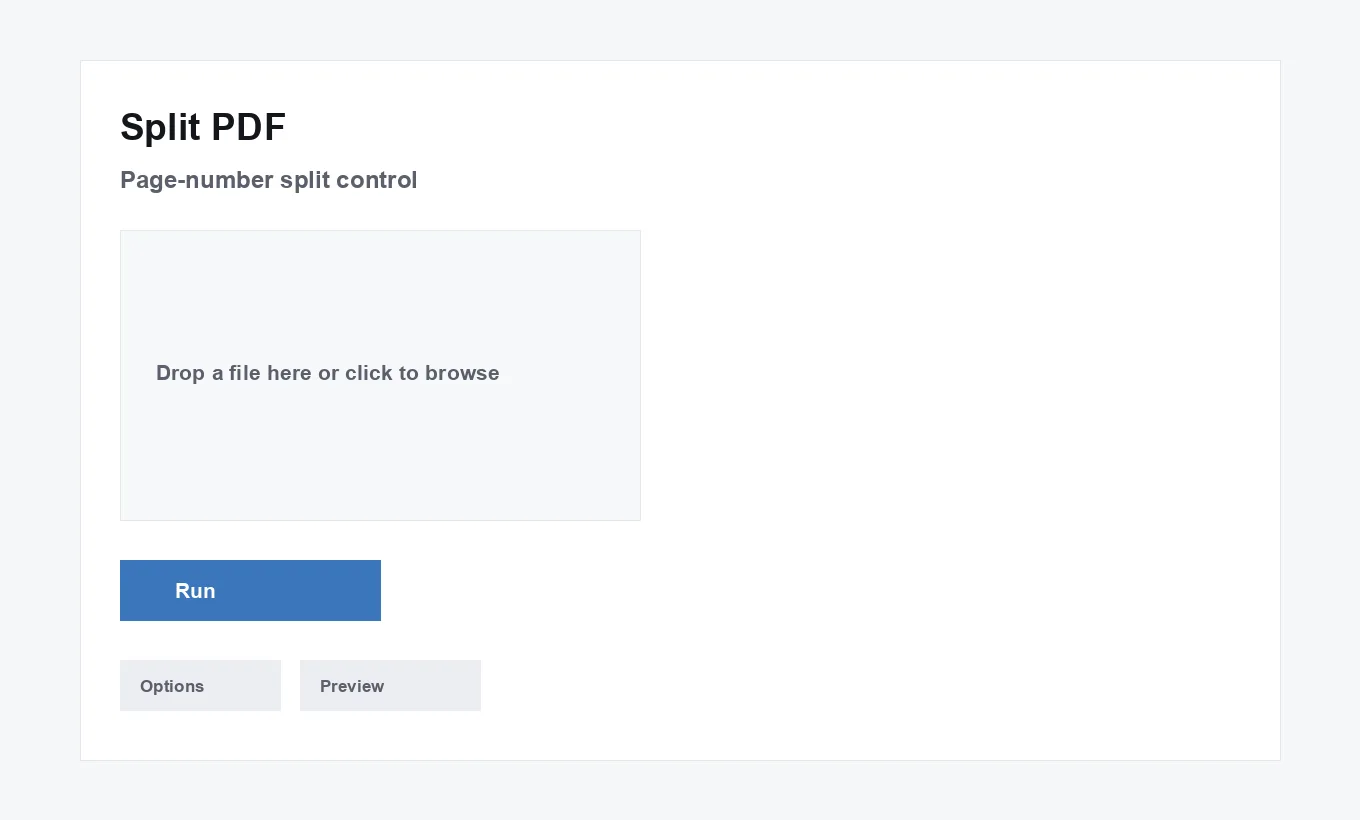
- Add your file. Drop one PDF onto the upload area, or click it to browse your device. If it only has one page, the tool disables the run button immediately and explains why — there's nothing to split.
- Choose where to split. Once the file loads, its real page count appears (for example, "This PDF has 12 pages"), and a page-number field lets you choose exactly where the cut happens. The field is automatically capped to one less than the total page count, so you can't accidentally choose a point that would leave one output file empty.
- Run the split. Click "Run Split PDF." The file is cut at the page you chose — pages 1 through N go into the first file, everything after goes into the second — and a progress bar tracks the copy. This is a fast, copy-based operation, similar in speed to merging.
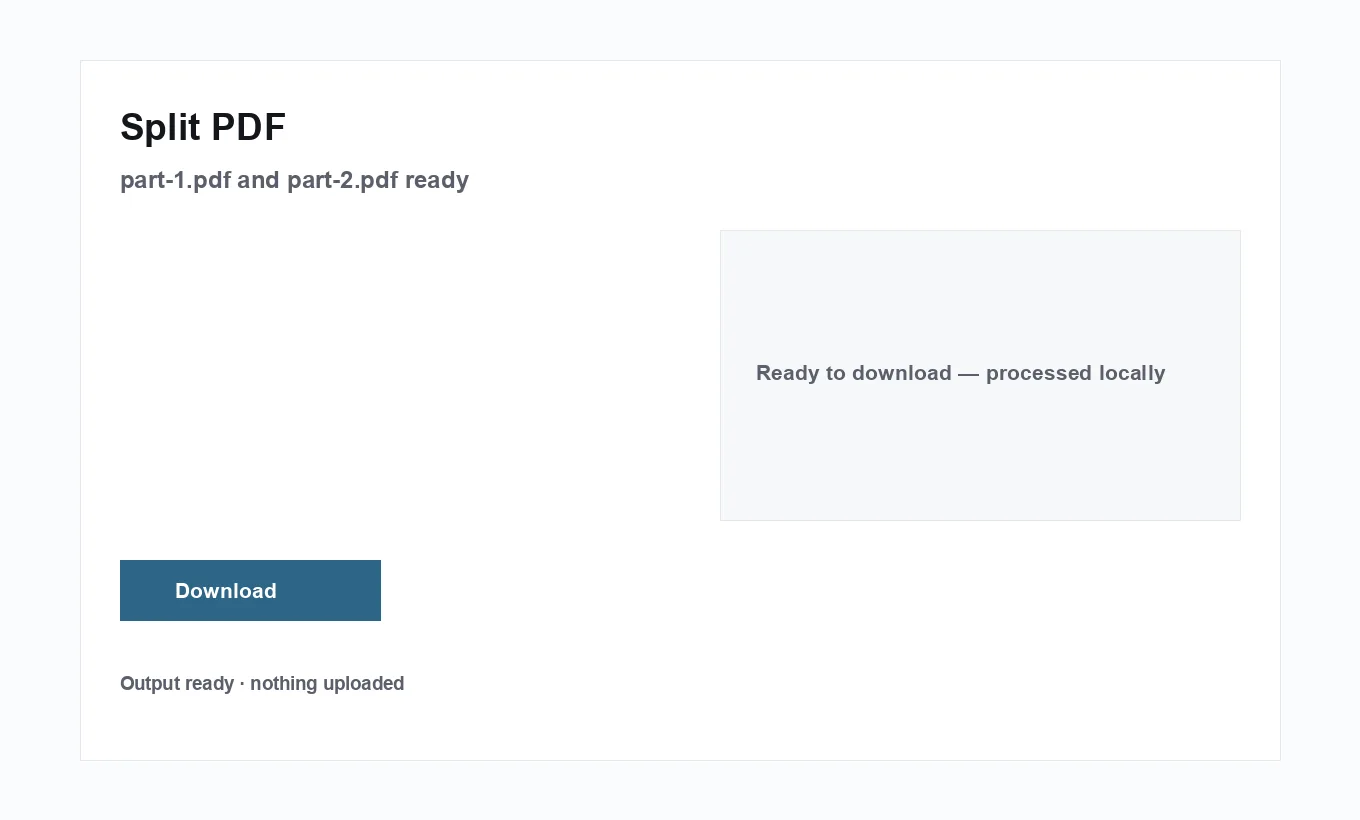
- Download both files. Two files,
part-1.pdfandpart-2.pdf, are offered as separate downloads at once. Nothing is uploaded at any point — both results have existed only in your browser's memory.
Who Uses This and Why
Contracts & Appendices
Pull a signature page or appendix out of a contract to send or file separately from the main body.
Scanned Books & Reports
Break a large scanned document into smaller, more manageable pieces.
Combined Statements
Divide a multi-account or multi-month statement PDF back into individual pieces.
Multi-Section Forms
Separate one section of a long form from the rest for independent review or signature.
Course Readers
Split a combined reading packet into smaller chunks matching a syllabus's weekly schedule.
Large Archived Documents
Cut an oversized archival file into pieces small enough for a system with a per-file upload limit.
Real Examples
A paralegal separating an exhibit from a filing. A 40-page filing has a 6-page exhibit attached at the end that needs to be filed as its own separate document per a court's e-filing rules. Splitting after page 34 produces the main filing and the exhibit as two independent PDFs, matching exactly what the portal expects.
A student breaking up a combined course reader. A professor posts one 120-page PDF containing every week's readings. Splitting it at each week's boundary (repeating the split on the growing "remainder" file each time — see "Splitting Into 3+ Parts" below) produces one file per week, matching the syllabus and making each week's reading easy to find without scrolling through the whole document — genuinely useful on a phone or tablet where jumping around a 120-page file is far more tedious than opening the right 10-page one directly.
An accountant separating a cover letter from a tax return. A combined PDF from an e-filing system bundles a client cover letter with the actual return; splitting after the cover letter isolates the return alone for filing with a state agency that only wants the return itself, not the cover correspondence.
A small business dividing a large scanned ledger. An old paper ledger, scanned as a single 200-page PDF, is split into smaller yearly chunks for easier reference, rather than needing to scroll through two centuries — sorry, two hundred pages — to find one specific year.
A job seeker separating a portfolio from a resume. A combined PDF containing both a resume and a multi-page work portfolio is split so the resume alone can be submitted to an application system that only accepts a one- or two-page resume file, with the portfolio kept as a separate file to share on request.
A researcher extracting an appendix for a co-author. A finished paper with a lengthy data appendix is split so the appendix can be sent separately to a collaborator who only needs to review that section, without sending the entire manuscript again — sparing the co-author from re-downloading pages they've already reviewed in an earlier draft.
A property manager separating a lease's addendum. A signed lease PDF has a pet addendum attached as its final two pages; splitting isolates the addendum so it can be filed and referenced separately from the core lease terms, matching how the property management system organizes documents by type — one record for the lease itself, a separate one for each addendum.
An IT administrator dividing a combined onboarding packet. A single PDF bundling an offer letter, an equipment agreement, and a security policy needs to be routed to three different systems that each expect just one of those sections; repeated splitting (see "Splitting Into 3 or More Parts" below) separates the packet into the three pieces each system actually needs.
A church or community group archiving a combined meeting-minutes file. A single PDF accumulated meeting minutes across an entire year; splitting it at each quarter's boundary produces four more manageable files matching how the group actually reports and reviews minutes, one quarter at a time.
A consultant separating a proposal from its pricing appendix. A combined proposal document needs its pricing section removed before an internal, budget-blind review round; splitting the document isolates the pricing appendix so reviewers see only the proposal narrative, with the pricing added back afterward for the version that goes to the client.
How It Compares
| Feature | TechDriven Tools | Other Online Tools | Desktop Software | Command-Line Tools |
|---|---|---|---|---|
| Speed | Instant, no upload | Depends on upload speed | Depends on install | Instant, but needs setup |
| Privacy | Never leaves your device | Varies — check the site's policy | Local, but often needs install/updates | Local, fully offline |
| Installation | None — runs in browser | None | Download & install required | Requires tools installed first |
| Mobile-friendly | Yes | Varies by site | No | No |
| Free | Always | Often freemium / capped | Often paid | Free, but not beginner-friendly |
| File limits | None beyond device memory | Often capped | Varies | None |
| Ease of use | Type a page number | Type a page number | Menu-driven | Typed commands |
If the actual need is picking out specific, possibly non-adjacent pages rather than cutting a document in two, Extract Pages is the more direct tool — see "Split vs. Similar Terms" below. And if the two resulting pieces ever need to become one file again, Merge PDF reverses a split cleanly — see "Putting the Pieces Back Together" further down this page.
Common Mistakes
Expecting one run to produce more than two files
Split always makes exactly one cut, producing exactly two files. To get three or more parts, split again on one of the two results — see "Splitting Into 3+ Parts" below for a concrete walkthrough.
Confusing Split with Extract
Split keeps everything, just divided into two files at one cut point. Extract Pages throws away everything except the specific pages you list. Wanting "everything before page 10, and everything after" calls for Split; wanting "just pages 4, 9, and 15" calls for Extract Pages.
Not checking the page count before picking a split point
The page-number field is capped to one less than the total, so an out-of-range number can't actually be entered — but it's still worth glancing at the real page count the tool shows after upload, rather than guessing at a split point from memory of the original document.
Assuming the two outputs are labeled by content
The files download as part-1.pdf and part-2.pdf — generic names that say nothing about what's actually inside each one. Rename them immediately after downloading if you're splitting more than one document in a session, to avoid mixing up which "part-1.pdf" belongs to which original file.
Trying to split a password-protected PDF
A PDF that genuinely requires a password to open can't have its pages read without that password — splitting will fail with a clear message rather than producing a broken file. Remove the password first, then split normally.
Miscounting pages when the source has unnumbered front matter
A document's printed page numbers and its actual PDF page position can diverge — a cover page or table of contents that isn't itself numbered still counts as a real page in the file. Trust the tool's own reported page count and the split-point field's valid range over a remembered printed page number, especially on documents with a cover page, title page, or other front matter that doesn't carry a printed number. A document with roman-numeral front matter (i, ii, iii) followed by arabic-numbered content (1, 2, 3) is a particularly easy place for this mismatch to bite, since "page 1" printed on the page and the file's actual first content page rarely refer to the same PDF page position.
Splitting when the real goal was extracting specific pages
If the actual need is "keep pages 3, 7, and 12, discard the rest" rather than "divide into two contiguous halves," splitting repeatedly to isolate those pages is a much longer path than just using Extract Pages once with the exact page list.
Losing track of the split-point reference on a multi-way split
On the second and later rounds of a multi-way split, entering a split point that was correct for the original document but not for the current remainder file is one of the most common real mistakes — see "A Closer Look: What Actually Ends Up in Each File" above for exactly why this happens and how to avoid it.
Best Practices
Check the real page count before picking a split point
The count shown after uploading is the file's actual page count, not an estimate — use it to double-check the split point actually lands where you intend, especially on a document whose length you're not perfectly sure of from memory.
Rename both outputs immediately after downloading
Since neither output file is named for its content, renaming them right away — before moving on to another task — avoids the confusion of a downloads folder full of ambiguously-named part-1.pdf and part-2.pdf files from different sessions.
For splitting into more than two pieces, work from the largest remaining piece each time
When breaking a document into several chunks by repeated splitting, splitting the larger of the two current pieces each round reaches the full set of final pieces in fewer total operations than repeatedly splitting the smaller one.
Use Extract Pages instead when you already know the exact page list
If the destination content isn't "everything before or after one point" but a specific, possibly non-contiguous set of pages, Extract Pages gets there in one step where repeated splitting would take several.
Confirm the split point against actual content, not just a number
Before running, glance at what's actually on the page immediately before and after the chosen split point in the source document, if you have a way to preview it — a single wrong digit in the split-point field is easy to type and easy to miss until after both files have already downloaded.
Verify both halves open correctly before deleting the original
Splitting is a lossless, safe operation, but it's still worth briefly opening both resulting files to confirm the cut landed where intended before deleting or archiving away the original combined file.
Count pages from the tool's own reported total, not a remembered number
The page count shown after uploading reflects the file's real, current page count — trust that over a recollection of how long the document "should" be, especially for a file that's been edited, merged, or re-exported since you last looked closely at it.
Decide the split boundary based on content, not a round number
A split point chosen for a round number ("split it in half") is often less useful than one chosen at an actual content boundary (the end of a chapter, the last page before an appendix starts) — take the extra moment to identify the real boundary in the source document rather than defaulting to an arbitrary midpoint.
Troubleshooting
The run button is disabled and says the file only has one page
A single-page PDF has nothing to split — there's no valid cut point on a one-page file. This isn't an error state to work around; if the source genuinely has only one page, there's nothing for this tool to do with it.
"This PDF is password-protected"
The file needs a password just to open it, which blocks reading its pages entirely. Remove the password first — see Unlock PDF — then split the unprotected copy.
"This file isn't a readable PDF"
Usually means the file is a different format with a .pdf extension, downloaded incompletely, or genuinely corrupted. Try opening it directly in a PDF viewer outside this tool — if it fails there too, the file itself needs to be re-obtained from its original source.
I can't enter the split point I wanted
The input is deliberately capped to one less than the total page count, so a split point at or beyond the last page can't be entered — that would leave the second output file empty, which isn't a valid split. Double-check the actual page count shown after upload; the number you had in mind may not match the file's real length.
The two files came out different sizes than expected
Output size roughly follows page count and each page's own content, not a fixed ratio — a 10-page split into 3-and-7 will naturally produce files of noticeably different sizes if the pages themselves differ in content density (a few text pages versus several image-heavy scanned ones, for instance). This is expected, not a sign anything split incorrectly.
A bookmark or internal link doesn't work in one of the split files
This happens when the bookmark or link's target page ended up in the other output file than the one it's sitting in — since the two files are now completely separate documents, a link can no longer reach across that boundary. See "Bookmarks and Internal Links Across a Split" above; this is an inherent consequence of dividing one document into two, not a processing error.
The split point I need isn't obvious from the page count alone
If it's unclear which page number corresponds to the actual content boundary you want (the start of an appendix, for instance), open the source file in a PDF viewer first and note the exact page number there before returning to this tool — the split tool itself doesn't show page previews, only the count and the numeric split-point field.
One of the two downloaded files won't open
Since both outputs are built the same way as the original (a normal, valid PDF file structure), a file that won't open afterward is almost always a download or transfer issue rather than a splitting problem — try downloading it again, and check that the full file transferred completely if it was moved somewhere else afterward, before assuming the split itself produced a broken file.
Deep Dive
What Is PDF Splitting
Splitting takes one PDF and divides it into two separate, independent files at a page you choose — everything up to and including that page goes into the first file, everything after goes into the second. It's the reverse of merging: one document becomes two, each a complete, standalone PDF with its own pages, fully functional on its own. Both resulting files are genuine, independent PDFs in every sense — either one can be opened, edited, merged with something else, or split again, with no lingering dependency on the file it came from.
Benefits of Splitting
Splitting is useful whenever only part of a document needs to travel on its own — sharing a single chapter without the whole book, sending an appendix separately from a contract's main body, or breaking a large scanned file into pieces small enough for a system with an upload size limit. It's also the direct way to reverse a merge, or to separate content that was combined for one purpose (archiving, printing) but now needs to be distributed as smaller, focused pieces. Beyond the immediate practical need, splitting also supports better information hygiene generally — sending only the specific section a recipient actually needs, rather than a full document containing unrelated content they have no reason to see, is a small but genuine form of minimizing what gets shared.
Why Only One Cut at a Time
Limiting the tool to a single cut point keeps the interaction simple — one number, two outputs, no ambiguity about ordering or which pages go where. For a document that genuinely needs three or more pieces, or a specific non-contiguous page selection, that's a different, more complex kind of operation, which is exactly why this site keeps it as a separate, purpose-built tool (Extract Pages) rather than trying to make one interface handle every possible page-selection pattern.
Quality and Fidelity
Because pages are copied — not re-rendered — splitting never touches image quality, text sharpness, or embedded fonts. Both output files are byte-for-byte faithful to the original pages they contain; the only thing that changes is which pages are grouped into which file.
Security Considerations
Since the file is read directly into your browser's memory and never uploaded, splitting a sensitive document — a contract, a medical file, a financial report — into shareable pieces never means trusting a server with the whole thing first, even briefly. This matters specifically because splitting is often used exactly when only part of a sensitive document should be shared — the other part never needs to leave your device at all.
Splitting on a Mobile Device
The page-number input works exactly the same way on a phone as a laptop — type the number, tap run, and both files download straight to your device, ready to share or save from there.
Business and Education Use Cases
In an office, this is the tool for separating a signature page from the body of a contract, or breaking a large scanned report into a table-of-contents section and a body section. In education, it's splitting a combined course reader into individual chapters, or separating a cover sheet from an assignment before uploading just the content that needs grading.
Splitting Scanned vs. Text-Based PDFs
The split operation itself doesn't care whether pages are scanned images or real text — both copy identically, since the process works on the PDF's page structure, not its content type. A scanned book splits exactly as cleanly as a text-based report; the only practical difference is that scanned pages are typically larger, so a scanned document's output files will be correspondingly bigger than a text-based document split at the same page count.
Bookmarks and Internal Links Across a Split
Each output file keeps whatever bookmarks and content point to pages that actually landed inside it — a bookmark for page 3 works fine in the first file if the split happened after page 5. A bookmark or internal link that pointed to a page on the other side of the split point, though, has nothing to point to anymore within that file, since the target page is now in the other document entirely. This is worth checking on a document with a table of contents built from clickable page links, similar to the same consideration that applies when merging.
Accessibility Tagging Across a Split
For a PDF tagged for screen-reader accessibility, each page's own tags travel with it into whichever output file it ends up in — a tagged page stays tagged after splitting. What can't be preserved is any document-level reading-order structure that spanned across the split point; since the two outputs are entirely separate documents, there's no single reading order linking them anymore, which only matters if the two pieces are meant to still be read as one continuous accessible experience rather than as genuinely separate documents.
Industry Applications
Legal
Separating exhibits, appendices, or certificates of service from a main filing to meet e-filing systems that require each document type as its own separate upload.
Education
Splitting a combined course reader or textbook scan into per-week or per-chapter pieces matching a syllabus, or separating a cover sheet from student work before grading.
Finance and Accounting
Dividing a combined multi-account or multi-period statement PDF back into individual account or period files for filing or distribution.
Real Estate
Separating a signature or disclosure page from a larger closing packet for a party who only needs to review or sign that one section.
Publishing and Media
Breaking a combined manuscript file into individual chapters for separate editorial review, or separating front matter from the main text.
Government and Public Sector
Dividing a large scanned archival record into smaller, more manageable pieces for a records system with its own per-file size or page constraints.
Healthcare
Separating a specific section of a combined patient record — a single visit's notes from a longer chart history — to share with another provider without transmitting the entire file.
Insurance
Dividing a combined claims file into the specific sections a downstream reviewer or adjuster needs, without resending the entire original bundle each time.
Non-Profit and Grant Administration
Separating a specific report section from a larger combined submission when a funder's portal only accepts one document type per upload slot, rather than a single bundled file covering everything at once.
Split vs. Similar Terms
- Split vs. Extract Pages. The most important distinction on this page: Split makes one cut and keeps both resulting halves as separate files. Extract Pages keeps only the specific pages you list and discards everything else. Wanting both halves of a document calls for Split; wanting only some pages calls for Extract Pages.
- Split vs. Cut. "Cut a PDF" is a common, informal synonym for splitting — same operation, different phrasing.
- Split vs. Divide. Also the same operation under a different name.
- Split vs. Separate Pages. Usually means the same thing as splitting when used loosely, though it can sometimes imply breaking a document into one file per page — which this tool doesn't do directly in one step, but can reach via repeated splitting (see "Splitting Into 3+ Parts" below), or in a single step via Organize Pages combined with Extract Pages for each individual page.
- Split vs. Unmerge. "Unmerge" isn't a standard PDF term, but describes what splitting accomplishes when reversing an earlier merge — see "Putting the Pieces Back Together" below for the more precise relationship between the two operations.
- Split vs. Break Apart. Another informal synonym, sometimes specifically implying splitting into one file per page rather than one cut into two pieces — check which behavior is actually meant before assuming it matches what this tool does.
- Split vs. Chapterize. Not a standard term, but occasionally used to describe dividing a long document along its existing chapter or section boundaries — achievable here through repeated splitting at each chapter's start page.
Splitting Into 3 or More Parts
Since each run makes exactly one cut, getting more than two final pieces means running the tool more than once. For three parts: split the original once, then split one of the two resulting files again at the appropriate point. For four or more: keep splitting the largest remaining piece each round, working through the document from one end to the other. A 100-page document that needs to become five 20-page pieces, for example, takes four split operations total — split off the first 20 pages, then the next 20 from what remains, and so on — rather than needing a single tool that outputs five files at once. This repeated-splitting approach is deliberately simple and predictable at the cost of a few extra clicks for a document that needs many pieces; if the exact page ranges for every piece are already known in advance, running Extract Pages once per desired piece can be just as fast and sometimes clearer to follow.
A concrete worked example: splitting a 60-page report into three 20-page sections. First, upload the original and split after page 20 — this produces a 20-page part-1.pdf (the first section, keep this one as-is) and a 40-page part-2.pdf (sections two and three, still combined). Second, upload that 40-page part-2.pdf back into the tool and split after page 20 again — this produces the final two 20-page sections. Three genuine sections from two split operations, with the key detail being that the split point on the second round is measured against the new 40-page file's own numbering, not the original 60-page document's numbering — page 20 of the remainder file is page 40 of the original, which is exactly the kind of off-by-one confusion "Plan the full set of cut points before starting" (above) is meant to head off. The same pattern extends cleanly to any number of pieces — each additional section just means one more round of splitting the current largest remainder, always working against that one specific remainder file's own current page numbering rather than the original document's page numbering.
Under the Hood
Splitting is handled by pdf-lib, the same library behind Merge PDF, using the identical page-copy mechanism in reverse. The source file is read into memory and opened with an option that allows loading PDFs carrying owner-level restrictions (permission flags with no open password) — a file that genuinely requires a password to open fails at this step with a clear error. Two brand-new, empty PDF documents are then created: the first is populated by copying pages 1 through your chosen split point from the source; the second is populated by copying every page after that point. Both use pdf-lib's page-copy API, the same lossless, non-rendering copy operation Merge PDF uses — the reason splitting never touches image quality, text sharpness, or embedded fonts. In a real sense, Split and Merge are mirror images of the same underlying page-copy mechanism: one takes many pages from one file and distributes them into two, the other takes pages from many files and gathers them into one — the actual copy operation moving each page is identical either way.
Because both output files are built by copying (not re-rendering) from the same already-loaded source document, splitting is fast — comparable to merging, and much faster than an operation like compression that has to genuinely redraw every page. The two resulting byte arrays are serialized and offered as two separate downloads in the same step, both entirely in your browser's memory, with no network request involved at any point. Most desktop and mobile browsers handle two simultaneous downloads from the same page without issue, though some browser or OS download-manager configurations may prompt separately for each file — this is a browser download-handling detail, not something the tool itself controls.
The page-count detection that drives the split-point field's valid range happens the moment a file is uploaded, before you've entered anything — the source document is opened once at that point specifically to read its page count, then reopened when you actually click Run to perform the real split. This two-step approach (check first, act later) is what lets the tool show an accurate page count and cap the input range immediately, rather than only discovering the file's real length after you've already tried to run the split.
Document Metadata After Splitting
Because both output files are built as brand-new PDF documents rather than modified copies of the original, neither one inherits the source file's title, author, subject, or keyword metadata automatically — both start with blank metadata, the same as any newly created PDF. If either resulting file needs specific metadata set, that's a separate step with Edit PDF Metadata, applied individually to whichever output needs it.
For a multi-way split done across several rounds, this means metadata has to be set individually on each final piece once splitting is finished, not once on the original before starting — since every intermediate remainder file along the way is also a fresh document with its own blank metadata, there's no point in the process where setting metadata once would carry through to all the final pieces.
Putting the Pieces Back Together
Splitting doesn't destroy anything — both output files together contain exactly the same pages as the original, just divided into two documents. If the two pieces (or several pieces from repeated splitting) ever need to become one file again, Merge PDF reverses the operation cleanly: add both files back in, confirm they're in the right order, and merge produces a document with the same pages in the same order as before the split. The one thing that doesn't automatically restore itself is any document metadata that was on the original — since both split pieces start with blank metadata (see above), a re-merged file also starts fresh rather than recovering whatever title or author metadata the pre-split original had. If that metadata matters, it's simplest to note it down before splitting and re-apply it with Edit PDF Metadata after any eventual re-merge, rather than trying to recover it after the fact.
This reversibility is also what makes splitting a genuinely low-risk operation to experiment with — since nothing about the original file's content is lost or altered by splitting, a split point that turns out to be wrong costs only the time to re-run the tool, or to merge the pieces back and start over, not any real risk to the underlying content. In practice, this means it's reasonable to try a split point, open both results to check, and simply re-run with an adjusted number if it wasn't quite right — there's no cumulative downside to getting it wrong the first time, unlike an operation that degrades quality with each attempt.
When Split Isn't the Right Tool
If the actual goal is keeping only certain pages and discarding the rest — not dividing a document into two complete, non-overlapping halves — Extract Pages is a more direct fit than repeated splitting. If the goal is reordering pages within a single file rather than dividing it into separate files, Organize Pages is the right tool. And if a document is being split purely to make it smaller for an upload limit, rather than because the two halves genuinely need to exist as separate documents, Compress PDF might solve the actual underlying problem (file size) without producing two separate files to manage afterward.
It's also worth reconsidering a split for a document that will just need to be merged straight back together for its next use — a temporary split purely to work around a size limit for one specific upload, for instance, where the recipient actually needs the whole document back as one file afterward, might be better solved by fixing the size limit at its source (via Compress PDF) than by introducing an extra split-then-remerge round trip.
Expert Tips for Power Users
Plan the full set of cut points before starting a multi-way split
For a document that needs to become several pieces, sketch out every intended split point (by page number) before making the first cut — it's easy to lose track of which page number in the original document corresponds to which page in an already-split remainder file partway through a multi-step split.
Use a consistent renaming scheme immediately
Since both outputs are always named part-1.pdf/part-2.pdf regardless of content, adopt a simple renaming habit right after each split (content-based names, or a numbered sequence for a multi-way split) rather than letting several rounds of identically-named downloads pile up. A browser's downloads folder will typically append a number to avoid overwriting a same-named file from an earlier split, which avoids data loss but doesn't solve the underlying identification problem — renaming immediately is still the more reliable habit.
Keep the original file until the full split sequence is verified
For a multi-way split done across several operations, keep the true original around until every final piece has been checked — reconstructing an intermediate step from already-split pieces is possible via Merge PDF, but starting over from the true original is simpler if something went wrong partway through. Only delete the original once every final piece has actually been opened and confirmed correct, not just once the split operations have all technically completed without an error message.
Cross-check the split point against a visual reference, not just a remembered number
Where possible, confirm the intended split page by actually looking at the source document (or a tool that shows page thumbnails, like Organize Pages) rather than relying purely on a remembered page number, especially for a document whose structure isn't perfectly linear (front matter, unnumbered pages, and similar can shift the page count you'd expect from casual memory).
Decide up front whether Split or Extract Pages actually fits the task better
Before starting a multi-step split to isolate a handful of specific pages, pause and consider whether Extract Pages would reach the same result in one step — repeated splitting is the right tool for genuinely dividing a document into sequential sections, but it's rarely the fastest path to a small, scattered page selection.
Batch-process by working from a written page map, not memory
For a document being divided into many pieces at once, write down the intended page ranges for every final piece before starting (page 1–20, 21–45, 46–60, and so on) — working from a concrete list rather than deciding each split point as you go substantially reduces the chance of an off-by-one mistake carrying through several rounds of splitting.
Treat a split-then-remerge as a safe, low-cost way to reorganize a document
Since splitting is fully lossless and Merge PDF reverses it exactly, a split-then-remerge round trip is a legitimate, low-risk way to reorganize a document's structure — split off a section, edit or replace it independently, then merge everything back together — rather than something to avoid for fear of losing quality along the way.
Practical Limits
There's no hard page-count or file-size limit enforced by the tool — the only structural constraint is that a source file needs at least 2 pages to have anything to split, and the split point is capped between 1 and one less than the total page count so neither output can end up empty. The practical ceiling for a very large document is your device's available memory, the same as any other browser-based tool on this site; a several-hundred-page scanned document will still split quickly, since copying pages is a fast operation regardless of how many there are.
There's also no limit on how many times the tool can be run in sequence — a document being divided into a dozen small pieces through repeated splitting works the same way as one being divided into two, just with more rounds. Since every round is a fresh, fast copy operation rather than something that gets slower or less reliable with repetition, there's no practical downside to a long chain of splits beyond the manual effort of running the tool that many times and the bookkeeping of keeping track of each intermediate piece along the way.
The one genuinely device-dependent factor worth knowing about is that both output files are held in memory simultaneously right before download — for an extremely large source document (many hundreds of megabytes), this means the peak memory used during a split is roughly the size of the original file plus both outputs, briefly. This is rarely a practical concern on a modern desktop or laptop, but is worth keeping in mind on an older or memory-constrained mobile device working with an unusually large scanned file — if a split seems to stall or the browser tab becomes unresponsive on such a file, waiting it out or switching to a device with more available memory are the two practical options, since there's no setting in the tool itself to reduce this memory footprint. In practice this ceiling is rarely reached — the overwhelming majority of everyday PDFs, even lengthy scanned ones, are nowhere near large enough to strain a typical device's available memory, and this is worth knowing about mainly as an explanation for the rare case where a split genuinely does take a long time, rather than as a reason to expect trouble on an ordinary file.
Keyboard and Screen-Reader Accessibility of This Tool
The split-point field is a standard numeric input, fully operable by keyboard, with its valid range (1 to one less than the total page count) enforced natively rather than requiring a mouse-driven stepper or slider. The page-count hint text and processing status ("Splitting…," the final "Done — split into X and Y pages" message) are delivered through the same accessible status region pattern used throughout this site's tools, so a screen-reader user gets the same information a sighted user sees visually.
Handling Many Files or a Multi-Way Split Efficiently
Splitting several unrelated documents in one session works best with a simple rhythm: upload, check the reported page count, set the split point, run, download both files, rename them, then move to the next document — closing the tool between unrelated files avoids any confusion about which page count applies to which document. For a single large document that needs to become many pieces through repeated splitting, it helps to work systematically from one end of the document to the other (always splitting off the next chunk from the front, for instance) rather than jumping around, since it's easy to lose track of which page number in an already-split remainder file corresponds to which page in the true original once a few rounds of splitting have happened. Working front-to-back this way also means every completed piece is genuinely final the moment it's downloaded — there's no need to revisit an earlier piece later just because a subsequent split point turned out to need adjusting.
A folder-per-document convention helps for anyone splitting many files regularly: create a new folder for each source document being split, download both resulting parts directly into it, and rename them there — this keeps every document's pieces grouped together and avoids a single downloads folder accumulating dozens of ambiguous part-1.pdf/part-2.pdf files from unrelated sessions.
Printing Split Files
Because splitting copies pages exactly with no re-rendering, both resulting files print at exactly the same quality as the original document — there's no compression-style trade-off to consider here at all. The only practical printing note is that each split file needs to be sent to a printer separately, as its own print job, since they're genuinely independent files once split — there's no "print both halves as one job" option once a document has been divided.
If the intent is actually to print only part of a longer document, most PDF viewers' own print dialogs already support printing a page range directly from the original file without needing to split it first — splitting is worth doing specifically when the piece needs to exist afterward as its own separate file, not just when a partial print is the only goal.
A Realistic Workflow: Isolating and Sharing One Section
A common end-to-end path looks like this: a combined document arrives (a scanned book, a bundled onboarding packet, a multi-part contract) and only one section actually needs to go to a specific recipient. Upload it here, note the real page count, identify the section's start and end pages, then split once to separate that section from everything before it, and split again on the appropriate remainder if the section also needs to be separated from content that follows it. If the isolated section later needs to go back into a larger document — attached to a different cover letter, for instance — Merge PDF combines it back with whatever else is needed. This split-then-optionally-remerge pattern covers the majority of "I need just this one part of a larger document" situations without needing any software beyond a browser, and because every step is lossless and reversible, it's just as reasonable to use this workflow as a temporary working step (split, review, remerge) as it is for a genuinely permanent division into separate documents.
A Closer Look: What Actually Ends Up in Each File
It's worth being precise about the boundary, since "split after page N" is easy to misread as an off-by-one question: choosing to split after page 5 on a 10-page document puts pages 1, 2, 3, 4, and 5 in the first file, and pages 6, 7, 8, 9, and 10 in the second — five pages in each, with page 5 (not page 6) as the last page of the first file. The hint text shown after uploading spells this out using your file's real numbers specifically to remove any doubt, but it's a detail worth double-checking manually before running if precision matters, such as when a specific page absolutely must land in one particular output and not the other.
The same logic extends to a multi-way split: on the second and later rounds, the split-point number is always relative to whichever remainder file you're currently working with, not the original document's page numbers. A page that was "page 47" in the original 100-page document might be "page 27" in a 60-page remainder file after an earlier split already removed the first 20 pages — always read the split point against the file currently loaded, not a number carried over in your head from an earlier step. Writing down the arithmetic explicitly for each round (original page 47 = remainder page 27, because 20 pages were already removed) takes a few extra seconds but reliably prevents the single most common real mistake in a multi-way split.
Reviewing Content Before You Split and Send
Because splitting is often done specifically to share only part of a document, it's worth double-checking both resulting files before sending either one — confirming the split landed exactly where intended, and that the piece being shared doesn't unexpectedly include a page from the other section (an easy off-by-one mistake when picking a split point from memory rather than the file's actual page count). Since splitting is lossless and reversible via Merge PDF, there's no real cost to re-running it with an adjusted split point if a quick check reveals the cut wasn't quite right.
This check matters most precisely when splitting is being used to withhold one section from a recipient — confirming the withheld section genuinely didn't leak into the file being shared is a quick, worthwhile step before sending, not an afterthought, since the entire point of the split was to keep that content separate in the first place. A quick way to verify: open the file that's actually being sent and check its last page (or first page, depending on which half is going out) against the page you intended as the boundary, rather than trusting the split point number alone without a final visual confirmation — a genuinely small habit that catches a real category of mistake before it reaches a recipient rather than after.
Who This Is For — And Its Honest Limitations
This tool is a strong fit for dividing any valid, unencrypted (or only owner-restricted) multi-page PDF into two pieces at a single, known page boundary — which covers the majority of everyday "I need part of this document separately" situations. It's not the right fit for a few specific cases:
- Files with a genuine open password. The password has to be removed first, in a separate step (see Unlock PDF), before this tool can read the file's pages at all — encrypted content can't be read or copied without it.
- Single-page PDFs. There's nothing to split — the run button stays disabled and the tool explains why, rather than letting you attempt a cut that couldn't produce two real files.
- Keeping specific, non-contiguous pages rather than two complete halves. Extract Pages is the more direct tool for that — built for exactly the "keep only these pages" pattern Split isn't designed for.
- Producing more than two files in a single run. Each run makes exactly one cut — see "Splitting Into 3 or More Parts" above for how to reach more pieces through repeated runs.
- Preserving the original's document metadata in either output. Both resulting files start with blank metadata — see "Document Metadata After Splitting" above for the reason and the fix.
- Keeping cross-document links or a unified reading order intact. A bookmark or link pointing across the split boundary won't reach into the other file — see "Bookmarks and Internal Links Across a Split" above.
Every one of these follows directly from what dividing one file into two genuinely means — there's no arbitrary restriction here, just the honest consequences of turning one document into two independent ones.
Glossary
Split point
The page number after which a document is divided — pages 1 through the split point go into the first output file, everything after goes into the second.
Page copy (vs. re-render)
Copying a page transfers its original content stream, fonts, and images into a new document unchanged. Splitting always copies; it never re-renders, which is why it never affects quality.
Owner password vs. user (open) password
A PDF can restrict actions like printing or editing with an owner password while still opening freely — that's an owner-restricted file, and this tool handles those normally. A user password is required just to open the file at all, and has to be removed before any tool, this one included, can read its pages.
Contiguous vs. non-contiguous pages
Contiguous pages form one unbroken range (pages 1–20). Non-contiguous pages are scattered individually (pages 3, 9, 15). Split always produces two contiguous ranges; picking non-contiguous pages calls for Extract Pages instead.
Page tree
The internal structure a PDF uses to organize and order its pages. Splitting builds two new, simpler page trees — one per output file — each containing only the pages that belong to that piece.
Document-level vs. page-level structure
Some parts of a PDF apply to the whole document (metadata, an overall bookmark outline); others apply to an individual page (its content, its own tags). Splitting cleanly carries page-level structure into whichever output a page lands in, but document-level structure has to be rebuilt fresh in each new file, which is why metadata doesn't automatically carry over — see "Document Metadata After Splitting" above.
Remainder file
The informal term used throughout this page for the larger piece produced by an intermediate split during a multi-way split sequence — the part still waiting to be divided further, as distinct from a truly final piece.
Lossless operation
An operation that produces output with no loss of quality or information compared to the input. Splitting is lossless — both outputs together contain exactly the same page content as the original, just divided.
Automation and Repeatability
This tool is a manual, one-file-at-a-time interface — there's no scripting API, no batch-upload mode, and no way to feed it a list of split points and walk away while it processes a queue. For a one-off split, or even a multi-way split done a handful of times, this is a non-issue; the manual rhythm described in "Handling Many Files or a Multi-Way Split Efficiently" above covers it well. For a genuinely recurring, high-volume workflow — splitting hundreds of documents at the same page pattern on a regular schedule, for instance — a manual browser tool like this one is honestly not the right fit at that scale, and a script-based approach using a PDF library directly (the same pdf-lib library this tool itself uses, called from a small script rather than through this UI) would be the more appropriate tool. This is a genuine, stated limitation rather than a gap to work around: the tool's entire design — no upload, no account, runs in any browser — trades away large-scale automation for simplicity and privacy, and that trade-off is worth being explicit about rather than silently discovered by someone trying to script around a UI that was never built for it.
Privacy & Security
- Files are never stored — nothing is written to a server, ever.
- All processing happens in your browser, using pdf-lib.
- No registration or account required to use any of this.
- Nothing is transmitted, so there's nothing in transit to intercept.
- Downloads come straight from your browser's own memory to your device.
From our blog: How to Split a PDF Into Multiple Files